Spring ‘25 PayIQ Installation
Instructions
Installation and System-Level Configuration should be performed with the assistance of the System Administrator or Revenova Support.
Complete the installation of the TMS Spring ‘25 package first before installing the Spring ‘25 PayIQ package. If upgrading an existing PayIQ installation, make sure the Winter ‘25 PayIQ package is installed and configured before proceeding.
Package Installation
In order to install PayIQ onto a TMS installation:
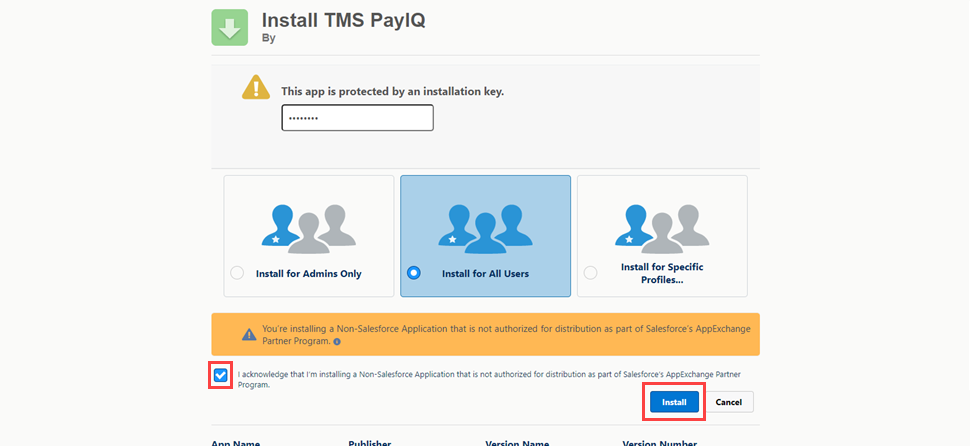
Obtain the latest install link and password by contacting Revenova Support.
Use the password provided, and use the Install for all Users setting.
Check the acknowledgement and click Install.
Wait a few minutes for the application to complete the installation process. An email is sent upon completion of the installation.
Assign Licenses to User Accounts
Assign TMS PayIQ licenses to the appropriate users. Only licensed users have access to PayIQ objects and fields.
PayIQ Fields and Related Lists
Add fields and related lists to the Load record page to allow Users to view pay from the Load the pay was generated.
Navigate to Setup → Object Manager → Load object → Lightning Record Pages. Select the appropriate Load record page.
If necessary, assign the record page as the org default for all users, app default, or app/record type/profile settings. See Salesforce documentation linked in the dialog under “Learn more about Lightning page assignment” for more information.
After assigning the default, customize the Load page layout with the following lists and fields that are applicable to PayIQ.
Participant Matches (related list)
Pay Details (related list)
PayIQ Logs (related list)
PayIQ Locked (field)
Sales Lead (Contact) (field - only relevant if this field is used for pay)
Custom PayIQ Eligible Date (field - only relevant if this field is used to customize when a Load is paid)
Save the page layout when complete.
Permission Sets
One permission set is included with the PayIQ package: TMS Developer PayIQ. This permission set includes all objects and fields within the PayIQ package. Assess the business needs and develop appropriate permission sets for users based on data accessibility. See additional Salesforce documentation on Permission Sets here.
Review fields added by the installation here. Set user CRUD access as needed.
Sharing Settings
In order for Pay Estimates to appear in the Fleet Email Loop, create sharing rules for the Pay Estimate, Pay Estimate Detail, and PayIQ Program objects.
From Setup, search for and select Sharing Settings.
In the Manage sharing settings for: drop-down, select the Pay Estimate object.
In the Sharing Rules section, click the New button.
Enter a Rule Name Label to generate the
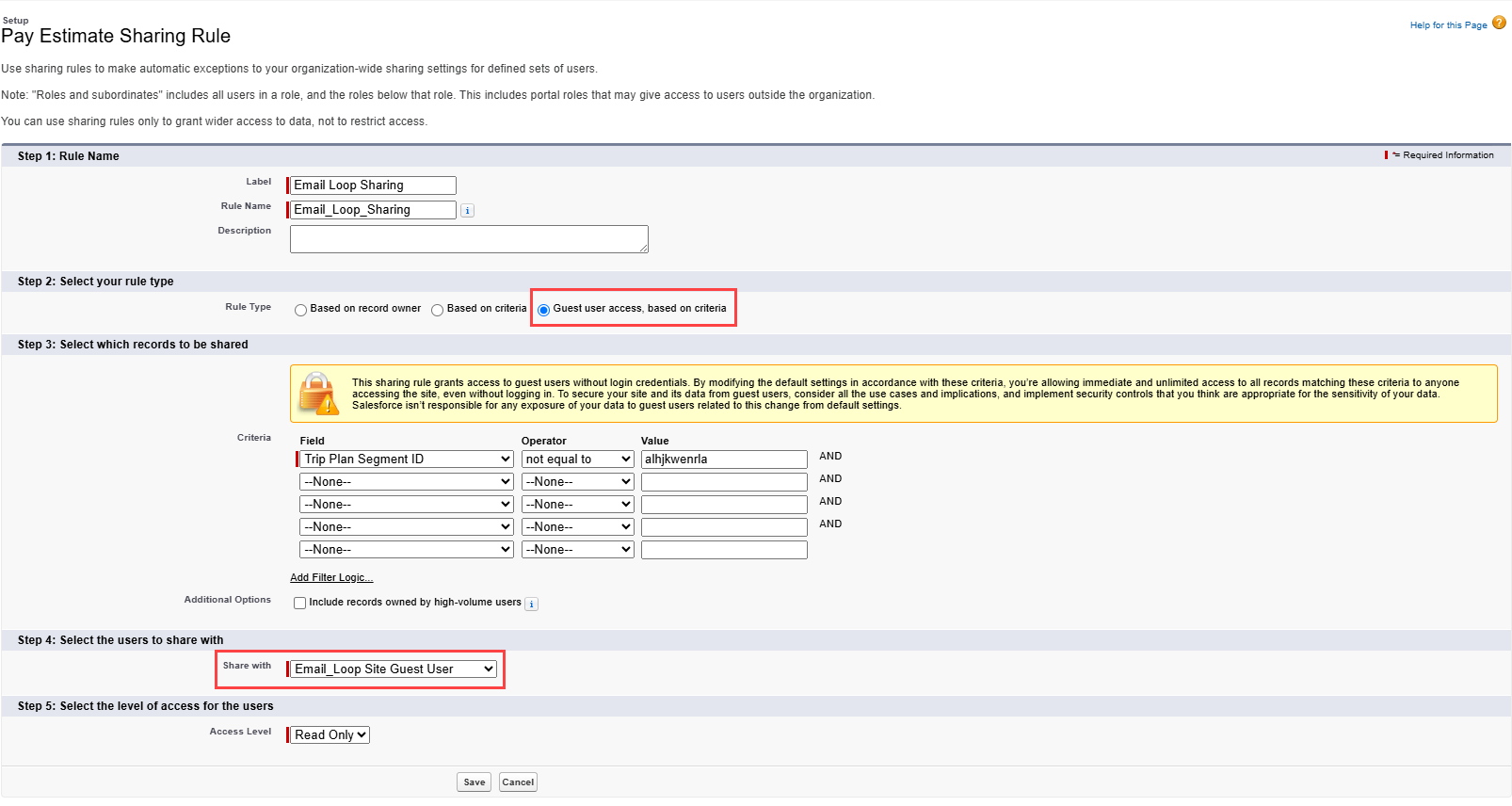
Select the Guest user access, based on criteria radio button.
Choose a Field from the list of Criteria and select an Operator with a nonsensical Value. See the screenshot below for an example.
Avoid using a picklist field when using the not equal to operator. Salesforce expects an existing picklist value.
In the Share With drop-down, select Email_Loop Site Guest User.
Confirm the Access Level is set to Read Only.
Click Save.
The Sharing Rule also applies to the Pay Estimate Detail object. This object does not require a sharing rule as it is a Master-Detail relationship to the Pay Estimate object.
Repeat the steps from the Manage sharing settings for: drop-down for the PayIQ Program object.
Upgrading from a Previous Version
Follow the upgrade steps from the oldest release to the newest release, in order, for any upgrades that span multiple releases.
Complete the installation of the TMS Spring ‘25 package first before installing the Spring ‘25 PayIQ package. If upgrading an existing PayIQ installation, make sure the Winter ‘25 PayIQ package is installed and configured before proceeding.
Spring ‘25 PayIQ Upgrade Instructions
All steps below must be completed.
You must install and test in a sandbox environment before upgrading to the production environment.
You must have installed and completely configured the PayIQ Winter ‘25 before installing this upgrade.
Obtain the Spring ‘25 installation URL and password from your Revenova representative.
Install the upgrade.
Select Install for All Users.
Click Upgrade.
Check the Yes, grant access to these third-party web sites box.
Click Continue.
In Setup, find Deployment Status and click the link to view the progress of the installation.
Wait for the Installation succeeded email.
From PayIQ Admin, select the Configuration tab. Click the Execute Release Update button ONCE and wait for the email indicating completion. This process completes the following tasks.
Renames the following picklist values. (Object → Field → Old Value → New Value)
Calculation Tier → Calculation Method → Rate per Driver Log/Trip Plan Leg Hour → Rate per Driver Log Hour)
Calculation Tier → Criteria → Driver Log/Trip Plan Leg Hours → Driver Log Hours)
Any errors encountered while running the Release Update Job are sent to the email account for the User running the job. Errors can also be found in the Apex Jobs view.
PayIQ includes two additional fields that may be added to the Fleet Asset. If paying against Fleet Assets, add the following fields to the Fleet Asset Lightning Record Page.
Navigate to a Fleet Asset record and select Setup → Edit Page.
Select the Fields tab.
Drag the following fields onto the Lightning Record Page.
Pay Settlement Email CC
Pay Settlement Email To
Click Save.
Spring ‘25 Field Modification Summary
Review fields added by the installation. Set CRUD access as needed.
Object | Field/Field Set | Action | Notes |
|---|---|---|---|
Calculation Tier | Calculation Method | Modify | Relabeled picklist value “Driver Log/Trip Plan Leg Hours” to “Driver Log Hours.” |
Calculation Tier | Criteria | Modify | Relabeled picklist value “Rate per Driver Log/Trip Plan Leg Hour” to “Rate per Driver Log Hour.” |
Participant Match | Matched To | Add | Trip Plan reference support. |
Participant Match | Matched To Type | Add | Trip Plan reference support. |
Participant Match | Trip Plan | Add | Trip Plan reference support. |
Participant Match | Trip Plan Segment | Add | Trip Plan reference support. |
Pay Detail | Paid From | Add | Trip Plan reference support. |
Pay Detail | Paid From Type | Add | Trip Plan reference support. |
Pay Detail | Trip Plan | Add | Trip Plan reference support. |
Pay Detail | Trip Plan Segment | Add | Trip Plan reference support. |
Pay Estimate | Trip Plan | Add | Trip Plan reference support. |
Pay Estimate Detail | Estimated From | Add | Trip Plan reference support. |
Pay Estimate Detail | Estimated From Type | Add | Trip Plan reference support. |
Pay Estimate Detail | Trip Plan | Add | Trip Plan reference support. |
Pay Estimate Detail | Trip Plan Segment | Add | Trip Plan reference support. |
PayIQ Log | Trip Plan | Add | Trip Plan reference support. |
PayIQ Log | Trip Plan Segment | Add | Trip Plan reference support. |