Overview
All invoices for a specific customer may be automatically consolidated and sent on a specified day of the week. A .CSV file may be created and included with the invoice email.
Automated Customer Invoice Generation
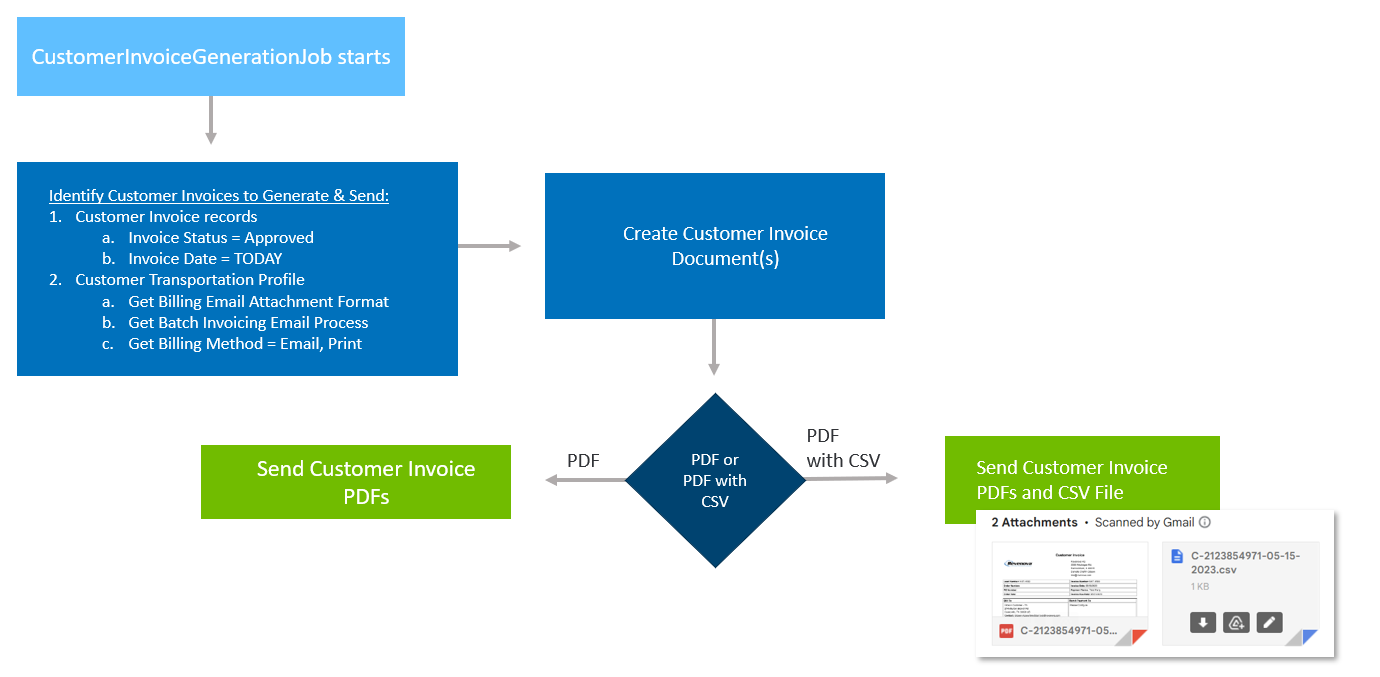
Automated customer invoicing is completed by running the CustomerInvoiceGenerationJob.
The CustomerInvoiceGenerationJob is available to run from the Job Monitor. The job processes invoices each time it runs based on the following criteria:
The Auto-Send Invoices field in the Transportation Profile record of the customer is Checked.
The Invoice Date is today.
The Invoice Status is set to Approved.
The Billing Method is Email or EDI.
Configuration
Configure the following settings.
Navigate to TMS Admin → Configuration and find the Invoice Processing section.

The Cust Inv Job First Run of the Day field is the time the job runs for the first time each day. Set the Cust Inv Job Run Frequency field to how often the job runs.
Navigate to the Customer Transportation Profile record. Select the Billing tab and configure the billing settings as necessary.

Set the Customer Invoice Day. Values are blank, and Monday through Sunday. This setting defines how the Invoice Date is calculated. When the value is blank, the Invoice Date is set to the current date. When there is a value, the date is set to the date based on the current day of the week. For example, if the Customer Invoice Day is set to Thursday, the Invoice Date is calculated as follows.
If today is Monday, the Invoice Date is set to the date of Wednesday (3 days from Monday).
If today is Thursday, the Invoice Date is set to today’s date.
If today is Friday, the Invoice Date is set to Thursday of next week (6 days from Friday).
The Billing Email Attachment Format field value is .PDF by default. To send a .CSV attachment with the .PDF, change this field to PDF with CSV.
The Customer Invoice Export File is determined by the Billing Email Attachment Format field. When PDF with CSV is selected, an export file definition is required. Each customer has one file export definition. See File Export Definitions for more information.
When PDF with CSV is selected, a single .CSV file is generated. It includes all invoices selected for the Billing contact regardless of the Batch Invoicing Email Process setting.
The .CSV file is attached to the same email that includes the .PDF.
A .CSV file is NOT generated when clicking the Generate & Print button.
There is no default file export definition.
The Auto-Send Invoices field must be checked for the CustomerInvoiceGenerationJob to automatically generate and send customer invoices.
The Billing Method field on the customer Transportation Profile must be set to either Email or EDI to auto-send invoices.
The status of each successfully processed invoice is set to Invoiced. The Date Sent field is set to Now. The Invoice Status Comments is set to blank.
The Batch Invoicing Email Process field determines the batch processing mode used when batch invoicing a Contact. See more information here.
Set the Batch Invoicing POD Treatment field to include PODs with invoice communications. This field applies to both batch and individual invoicing. See more information here.
The Invoice Terms field is the number of days between the customer Invoice Date and the customer Invoice Due Date. This field is populated based on the customer Transportation Profile. If blank, the value in Document Options Customer Invoice Default Terms field is used.
The Invoice Status field is set to On Hold when invoice generation encounters an error. The Invoice Status Comments field contains the detailed error message. The list of errors are also emailed to the user.
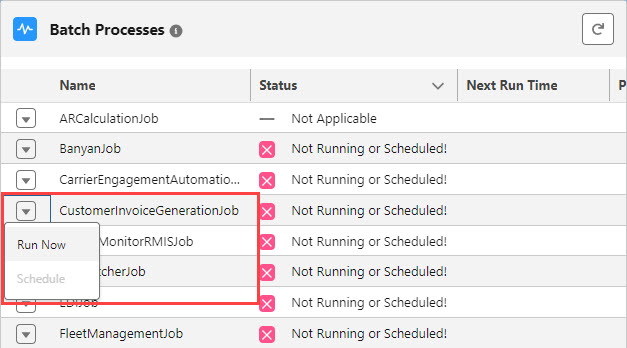
When configured, run the CustomerInvoiceGenerationJob from the Batch Processes LWC.
When customer invoices are automatically sent via email, the .PDF and any .CSV attachments are saved for reference. They are found on the recipient Contact record in the Notes & Attachments section.
.png "Auto-Creation of Invoice - Contact record(1).png")
Billing .PDF Creation
When creating a Billing .PDF file in a list view the following error is possible.
'Attempting to de-reference null object.'
Possible solutions:
Navigate to TMS Admin, Customer Invoice Documents. If the Invoice Action is set to Include if Accessorial Present, an accessorial must be linked. Click the Add button in the list. The TMS looks for the linked accessorial(s) before creating and sending the Billing/Invoice.
Is there a Billing Contact associated?
Billing contact(s) may have been added to the Account after the Billings were generated. The Billing contact can be manually populated on the Billing record.
If the Billing Method on the Customer Bill To Transportation Profile is set to Email, make sure the Billing Contact has an email address entered.