Overview
Initial TMS Installation
Use these instructions only if you are a first-time installer of Revenova TMS. Go to the Upgrading from a Previous Version section to perform an upgrade of a previous release.
From Setup → Lightning Email Templates toggle Folders and Enhanced Sharing to On.
Create a new Permission Set.
From Setup → Permission Sets.
Click the New button at the top of the Permission Sets list.
Label the new Permission Set, Manage Public Lightning Email Templates and Drag-and-Drop Content Builder.
Click Save.
Click the link for System Permissions and click the Edit button. Search for these two permissions and add them to the Permission Set:
Manage Public Lightning Email Templates.
Access drag-and-drop content builder.
On the Permission Changes Confirmation modal, click Save.
Assign the Manage Public Lightning Email Templates and Drag-and-Drop Content Builder Permission Set to the logged in user completing the installation.
Obtain the URL and install the package, using the Install for all Users setting.
Wait a few minutes for the application to complete the installation process. You will receive an email upon completion of the installation.
From Setup → Installed Packages click on the Manage Licenses link for the TMS package and assign licenses to users.
From Setup → State and Country/Territory Picklists turn on Country/State Picklists. Start with the United States as the only country unless you have more information.
From Setup → Data Management → Data Integration Rules activate Geocodes for Account Shipping Address.
From Setup → Enhanced Email. Confirm that Enhanced Email is Enabled.
From Setup → Workflow Rules. Make sure the TMS Auto-Reject Carrier Transportation Profile workflow rule is active or an equivalent method to invalidate unacceptable carriers.
From Setup → Duplicate Rules. Turn off Matching Rules and Duplicate Rules for Accounts and Contacts as they can prevent auto-creation of accounts in the application.
From Object Manager, navigate to the following objects. For each, click the Edit button. Under Optional Features, check the box for Track Field History. Click Save.
Carrier Quote
Carrier Quote Accessorial
Claim
Container
Customer Quote
Customer Quote Accessorial
Customer Quote Tax
EPayment
Line Item
Load
Load Accessorial
Load Reference
Sales Tax
Stop
Transportation Profile
From TMS Admin → Configuration click on the Reset Reference Data button ONCE. Wait for this process to complete.
From TMS Admin → Configuration fill out all the fields in the top section with valid values.
Create a global (broker) transportation profile as the global default and set it from TMS Admin → Configuration.
From TMS Admin → Equipment Types set the four load board equipment types by visiting and filling out all information on each Equipment Type record.
From Setup → Chatter Settings enable Chatter.
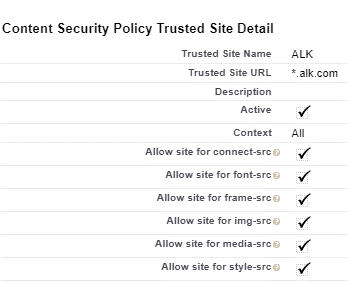
From Setup → Trusted URLs add a new trusted URL for ALK Maps:
Make sure these custom Account fields are displayed for TMS users, properly secured:
TMS Type
Transportation Profile
DBA Name
Customer Sales Rep
Default Payment Method
Posting City
Posting State/Province
Time zone
Make sure the Transportation Role field is displayed for TMS users on the Contact page layout.
Provide appropriate CRUD access to each user profile for each TMS object.
Tailor page layouts and lightning record pages as appropriate for each profile.
Please refer to Getting Started with Revenova and the Revenova Knowledge Base for detailed descriptions, configuration settings, and customizations available in the application.
Upgrading from a Previous Version
You must perform each set of upgrade tasks (EXCEPT for the package installation step which can skip from any release to the latest) if you are upgrading from a release prior to the previous release.
Follow the upgrade steps from the oldest release to the newest release, in order, for any upgrades that span multiple releases.
Release 7.12 TMS Upgrade Instructions (ETC: 60 minutes)
Accounting Seed customers must have BOTH the TMS and Accounting Seed Installation Guide packages before upgrading. Complete the TMS Upgrade installation before installing the Accounting Seed Bridge package. See the Accounting Seed Bridge installation instructions for more information.
Fleet Module customers can NOT upgrade to the 7.12 release at this time.
Items in blue can be skipped if the feature is not being used. Structural changes in red should always be made.
You must install and test in a sandbox environment before upgrading to the production environment.
You must have installed and completely configured Release 7.11 before installing this release.
SFDC/TMS Pre-Configuration
For Accounting Seed customers, do not install this TMS release until you have the Accounting Seed Bridge package URL also. They must be upgraded at the same time.
From Setup → Duplicate Rules. Turn off Matching Rules and Duplicate Rules for Accounts and Contacts as they can prevent auto-creation of accounts in the application.
From Setup → Data Management → Data Integration Rules activate Geocodes for Account Shipping Address.
From Setup → State and Country/Territory Picklists turn on Country/State Picklists. Start with the United States as the only country unless you have more information. These picklists should be enabled unless there is a backward-compatibility issue with other packages or customizations.
From the Object Manager, make sure no values were added to the Load object’s Sales Status or Load Status picklist fields or the Stop object’s Stop Status picklist field.
From the Object Manager → Sales Tax object, click the Edit button. Under Optional Features, check the box for Track Field History. Click Save.
Deleting fields in the Lightning UI is sometimes not possible. Switch to the Classic UI to perform any field or Visualforce pages if experiencing issues.
The 7.12 upgrade includes the addition of Vendor type Carrier quotes and the ability to accept multiple quotes for a single Load. All accounting integrations should be thoroughly tested to ensure proper functionality.
Obtain the 7.12 installation URL and password from your Revenova representative.
Install the upgrade.
Select Install for All Users.
Click Upgrade.
Check the Yes, grant access to these third-party web sites box.
Click Continue.
In Setup, find Deployment Status and click the link to view the progress of the installation.
Wait for the Installation succeeded email.
Several new objects and fields are included in the 7.12 installation. Set CRUD access for the objects and/or fields accordingly.
Warning:
Upgrade installations do not add any objects or fields to custom permission sets. Add new fields as necessary to any custom permission sets. New fields are added automatically to Revenova packaged permission sets and do not require additional setup.
Custom permission sets are commonly used for:
Carrier CommunityCarrier Email Loop
Customer CommunityCustomer Email Loop
Fleet Email Loop
Many updates are included for the upcoming Fleet Management module update in a future release.
Set CRUD access for the new Fleet Management Console tab.
The Dispatch Console tab and all associated LWC components are now obsolete.
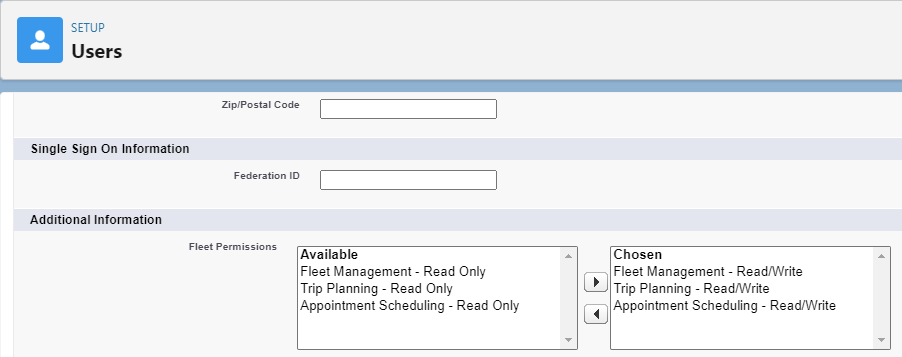
Add the Fleet Permissions field to the User page layout.
From Setup → Object Manager navigate to the User object.
Select the User Page Layouts tab. Choose User Layout.
Add the Fleet Permission field to the page payout.
Click Save.
Provide the appropriate Fleet Permissions to each Fleet user.
Fleet Management (Ready Only, Read/Write)
Trip Planning (Read Only, Read/Write)
Appointment Scheduling (Read Only, Read/Write)
Click Save.
Add new Account picklist values.
From Setup → Object Manager navigate to the Account object.
Select the Fields & Relationships tab. Choose the TMS Type field.
In the Values section, click New.
Enter the following TMS types into the text box, each on a new line.
Border Crossing
Distribution Center
Terminal
Vendor
Waypoint
Click Save.
Choose the Reorder button to rearrange the list of TMS Types as necessary.
Add new Fleet Assignment picklist values.
From Setup → Object Manager navigate to the Fleet Assignment (Obsolete) object.
Select the Fields & Relationships tab. Choose the Status field.
In the Values section, click New.
Enter the following value into the text box, each on a new line.
Converted
Click Save.
Delete obsolete fields.
From Setup → Object Manager navigate to the Driver object.
Carrier
Dispatch Status
Domicile
Primary Driver
Tractor/Truck
Tractor/Truck as of
Trailer 1
Trailer 1 as of
Trailer 2
Trailer 2 as of
Trailer 3
Trailer 3 as of
Trailers
From Setup → Object Manager navigate to the Fleet Asset object.
Status (rtms__Status__c)
From Setup → Object Manager navigate to the Load object.
Driver Assignment Status
Orgs with the Analytics or PayIQ package installed are not able to delete the Driver Assignment Status field. Skip deleting this field.
Create an Email Loop for Fleet Management.
The new Email Loop may be separate or part of an existing Customer or Carrier Email Loop.
See additional documentation for more information to create a Fleet Email Loop.
The Queued Transaction batch processes three additional updates.
Fleet Load Changed.
Fleet Driver Confirmation Accept.
Fleet Driver Confirmation Decline.
The Fleet Assignment object is now obsolete.
The Dispatch button is removed from the Carrier Quote Builder on the Freight Quote Assistant.
The No Appointment warning for Fleet Loads on the Load Detail LWC is removed.
Before performing step 8, complete the following.
Navigate to TMS Admin → Configuration. Confirm the Fleet Management Default Carrier field is populated with the correct Carrier.
Navigate to Setup → Object Manager. Select the Fleet Assignment (Obsolete) object and find the Status field. Confirm the field has the Converted picklist value.
From TMS Admin → Configuration click on the Reset Reference Data button ONCE and wait for the email indicating completion. This process does the following:
Sets the new Use Platform Events For checkboxes to Checked.
Customer Rate Load
AR Calculate Balances
AR Calculate Shared Credit Limit
EDI 990 Outbound
EDI 214 Outbound
Project 44
Project 44 Tracking
Project 44 Unified Tracking
Creates record types to support a future integration with SMC3 EVA.
4 new Accessorial records are created. (Accessorial Type)
Appointment Required at Delivery (Delivery)
Appointment Required at Pickup (Pickup)
Collect on Delivery (Load)
In Bond Shipment (Load)
18 new SMC3 EVA Provider value API Accessorial records are created. (API Accessorial Code)
Appointment Required at Delivery (APTD)
Appointment Required at Pick Up (APTP)
Collect On Delivery (COD)
Construction/Utility Delivery (CNSTD)
Construction/Utility Pick Up (CNSTP)
Excess Length - Over 120” (OVR)
Guaranteed (EXCL)
Hazardous Material Handling (HAZ)
In Bond Shipment (INBD)
Inside Delivery (IDL)
Inside Pick Up (IPU)
Lift Gate Delivery (LFTD)
Lift Gate Pick Up (LFTP)
Limited Access Delivery (LTDAD)
Limited Access Pickup (LTDAP)
Notify Prior to Delivery (MNC)
Residential Delivery (RES)
Residential Pick Up (REP)
3 new Service Level records are created.
Guaranteed Morning
Guaranteed Noon
Guaranteed End of Day
Updates the following record types to support upcoming changes to Fleet Management.
Driver object field records are updated as follows. (Pass 1)
The Status field is set to Available.
The Confirmation Method field is set to Email.
The Email field is set to the Associated Contact Email.
Fleet Asset object field records are updated as follows. (Pass 2)
The Company Division field is set to the TMS Admin → Configuration Fleet Management Default Carrier.
The Status field is set to Available.
Zone object field records are updated as follows. (Pass 3)
The Category field is set to Rate Entry.
Fleet Assignment records are converted to Trip Plan records. (Pass 7)
These records are converted 1 to 1.
Updates the following Accessorial records for the WWEX integration.
Populates two new Accessorial records used by the WWEX Speedship integration. (Accessorial Type)
Carrier Terminal Drop Off (Pickup)
Hold at Terminal (Delivery)
43 new WWEX Speedship Provider value API Accessorial records are created. (API Accessorial Code)
After Hours Delivery (AFTRHRDEL)
After Hours Pick Up (AFTRHR)
Airport/Gov/Mines/Gas & Oil Fields Delivery (AIRDEL)
Airport/Gov/Mines/Gas & Oil Fields Pick Up (AIRPU)
All Risk Insurance (ALLRISK)
Blind Shipments (BLIND)
Carrier Terminal Drop Off (DRP)
Construction/Utility Delivery (CONDEL)
Construction/Utility Pick Up (CONPU)
Corrected BOL (CORBOL)
Customs (CUSTOMS_FEE)
Detention at Delivery (DETDEL)
Detention at Pick Up (DETPU)
Diversion (RECON)
Exhibition Trade Show Delivery (CNVDEL)
Exhibition Trade Show Pick Up (CNVPU)
Extra Labor Delivery (XTRLBR)
Guaranteed (GUR)
Hazardous Material Handling (HAZM)
High Cost Delivery Surcharge (HCD)
Hold at Terminal (HOT)
Holiday Delivery (HDAYDEL)
Holiday Pick Up (HDAYPU)
Inside Delivery (INDEL)
Inside Pick Up (INPU)
Lift Gate Delivery (LGDEL)
Lift Gate Pickup (LGPU)
Limited Access Delivery (LTDDEL)
Limited Access Pickup (LTDPU)
Lumper Delivery (LUMPER)
Notify Prior to Deliver (NOTIFY)
Protect From Freezing (PFZ)
Redelivery (REDEL)
Residential Delivery (RESDEL)
Residential Pick Up (RESPU)
Saturday Delivery (SATDEL)
Saturday Pick Up (SATPU)
Single Shipment Fee (SINGSHIP)
Sort/Segregate Delivery (SORT)
Stop Off (STPOFF)
Sunday Delivery (SUNDEL)
Sunday Pick Up (SUNPU)
Vehicle Ordered Not Used (TCKNU)
Sets the Service Type field on all Carrier Service records to Carrier.
Thoroughly check the accessorial names. If accessorial names were changed, the API Accessorial records in step ii do not insert.
If API Accessorial records do not insert, correct any accessorial names and press the Reset Reference Data button again. Only press the Reset Reference Data button once accessorial names are corrected to insert the API Accessorial records.
Prevent an issue where LaneIQ does not return results for City/State searches.
Navigate to the org. Home page. The default is “Home - Revenova Default.” Complete the following steps for any custom Home pages.
From the Home page choose Setup → Edit Page.
Select LaneIQ to open the LWC settings on the right side of the screen.
Remove any values in the Default Country field.
Click Save and exit the Builder.
.jpg)
All Revenova packaged Lightning Record Page layouts are updated during the 7.12 upgrade installation. All page layouts are now standardized.
Activate the following picklist values.
From Setup → Object Manager navigate to the API Accessorial object.
Select the Fields & Relationships tab. Choose the API Provider field.
In the Inactive Values section, click the Activate link for the following Inactive Values.
SMC3 EVA
WWEX Speedship
Prepare for a future SMC3 EVA API integration.
From Setup → Object Manager, navigate to the Transportation Profile object. From Fields & Relationships, click the Tracking Provider field.
In the Values section, click the New button.
Enter “SMC3 EVA” in the text box. Check the appropriate record types and click Save.
In the Values section, click the Reorder button to move the SMC3 EVA selection up or down in the picklist. Click Save when finished.
Support for multiple Carrier type and Vendor type Carrier quotes on a Load.
A Load supports an Accepted single Carrier type and multiple Vendor type Carrier quotes.
All custom Accounting integrations must be tested prior to upgrading to production. New functionality may impact the integration.
Create Vendor type Carrier Services to create Vendor quotes.
See more information on creating Vendor type Carrier Services.
Insert the Vendor Rate Confirmation .PDF document.
Navigate to the gear icon and select Developer Console.
From the Developer Console, select the Debug dropdown and choose Open Execute Anonymous Window.
Copy and paste the following code into the console:
insert new rtms__TMSDocument__c(Name = 'Vendor Rate Confirmation');Highlight the pasted text and click Execute Highlighted Action.
When completed, close the Developer Console.
Improvements to the Net Freight Charges field Functionality.
The new Freight Surcharge field on the Vendor Invoice captures the Freight Surcharge on the corresponding Carrier quote. The Net Freight Charges field on the Vendor Invoice includes the new Freight Surcharge field in the calculation.
All custom Accounting integrations must be investigated prior to upgrading production to determine if the addition of Vendor type Carrier quotes impacts the integration.
Move TMS Queued Transaction Event Processing to Platform Events.
Unless otherwise specified, it is strongly recommended to use Platform Events for all processes provided.
Confirm from TMS Admin → Configuration that Use Platform Events For is checked for:
Customer Rate Load
AR Calculate Balances
AR Calculate Shared Credit Limit
EDI 990 Outbound
EDI 214 Outbound
Project 44
Project 44 Tracking
Project 44 Unified Tracking
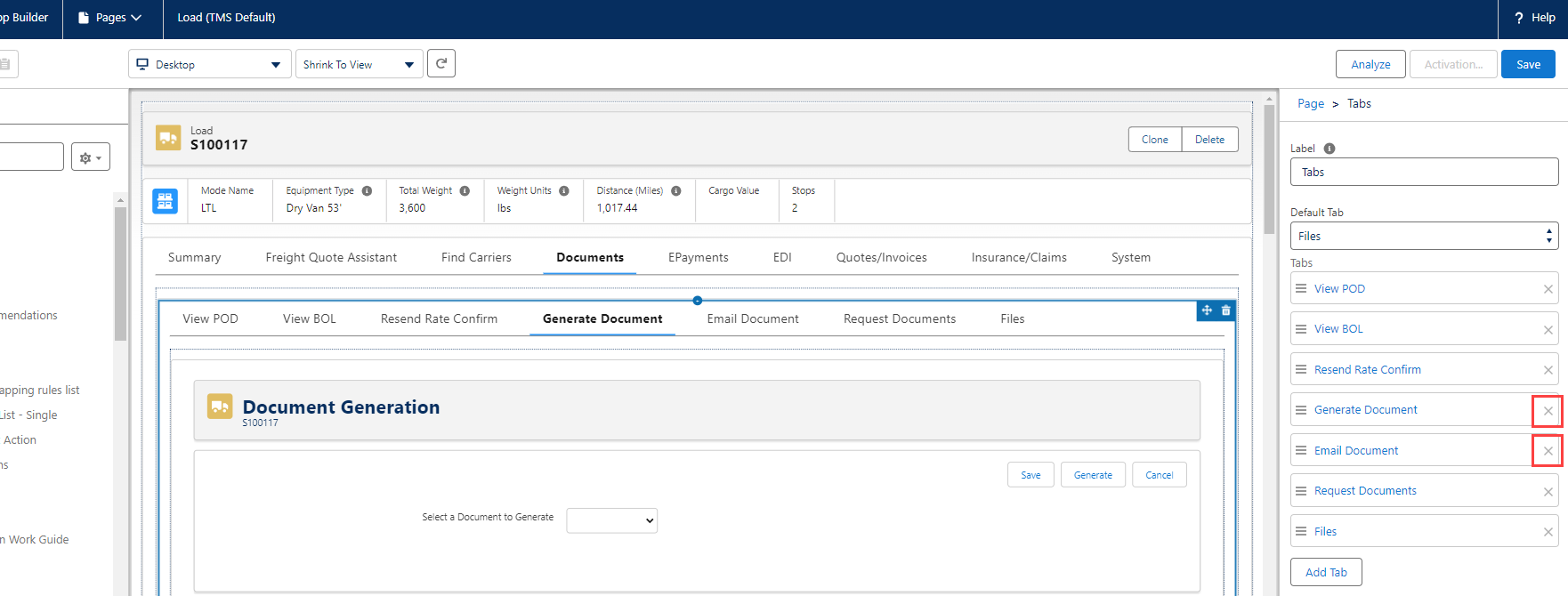
Remove obsolete Visualforce pages from the Load page layout. The new Document Generation LWC on the Load header provides the ability to create and send documents.
Navigate to a Load and select the gear and choose Edit Page.
Select the Documents tab.
Delete the following tabs.
Generate Document
Email Document
Click Save.
The Documents button is not installed on custom Lightning Record Pages.
From the Setup icon, select Edit Page.
Select the Highlights Panel.
Under Actions, choose Add Action.
Search for and select the Documents Quick Action.
Click Done.
Perform this action on the following pages if using a custom Lightning Record Page(s).
Load
Carrier Quote
Customer Quote
Customer Invoice
Vendor Invoice
Migrate to the new WWEX Speedship API from the obsolete Worldwide Express API. The new API supports adding cargo insurance during the Carrier quoting process. See the WWEX Speedship article for more specific setup.
Turn off the existing Worldwide Express API.
From TMS Admin → Credentials, find the Worldwide Express card.
Uncheck Enabled on the Credentials record.
Click Save.
Find the WWEX Speedship credentials card.
Check the Enabled box on the card.
Enter the new User Id and Password 1.
Click Save.
Create or update Carrier Service records. Replace the Credentials field with the field found on the WWEX Speedship record. Confirm the Carrier Services is Checked as Enabled. The API Provider field automatically updates to WWEX Speedship when saved. See the Carrier Service Setup article for more information.
To request insurance from WWEX, the "All Risk Insurance" accessorial must be added to new loads.
From TMS Admin → Accessorials, click Edit for All Risk Insurance.
Check the Pre-Quote box.
If using in the Customer Portal, check Customer Portal Selection.
Click Save.
Enable the two new Accessorial records in the Customer Portal.
From TMS Admin → Accessorials, click the Edit link on the following Accessorial records.
Carrier Terminal Drop Off (Pickup)
Hold at Terminal (Delivery)
Check the Customer Portal Selection box.
Click Save.
Use Rate Entries to filter Carrier quotes generated with the SMC3 integration.
Skip this step if upgrading from 7.11.2. This task was completed as part of the patch installation.
From Setup → Object Manager, navigate to the Rate Entry object. From Fields & Relationships, click the Direct/Interline field.
Add the following to the picklist. In the Values section, click the New button. Enter the following values each on a separate line.
Direct - Direct
Direct - Interline
Direct - Partner
Interline - Direct
Interline - Interline
Interline - Partner
Partner - Direct
Partner - Interline
Partner - Partner
Click Save.
Carrier Email Loop Permission Updates
If Carriers (Carrier Service) are required to enter information such as Driver Name, Driver Phone Number, or Driver Comments before accepting a Load Tender, the Create permission must be added on the Load object. Create a new Permission Set for the Email Loop user.Navigate to Setup and search for Permission Sets.
Click the Permission Sets link and find the TMS Carrier Email Loop permission set.
If using a custom permission set, confirm the permission set contains Create access on the Load object.
Choose the Clone link.
Delete the API Name and provide a new Label for the permission set. Press tab to populate the API Name field based on the new Label. Click Save.
Select the new permission set.
Choose Object Settings.
Select Loads.
Click the Edit button and update the Object Permissions to enable Create access.
.png "Email Loop Permission Set - 1(1).png")
Click Save.
Return to the original TMS Carrier Email Loop permission set.
Click the Manage Assignments button.
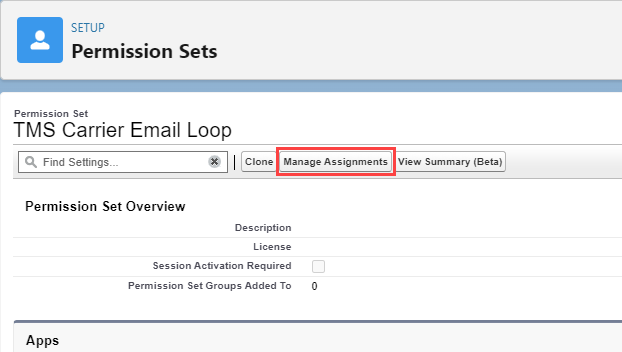
Select the Email_Loop Site Guest User link.
Choose the Edit Assignments button on the Permission Set Assignments related list.

Select the new permission set and add it to the Enabled Permission Sets column.
Click Save.
See the Carrier/Customer/Fleet Email Loop documentation for more information.
Create and configure Limited Access Accessorial charges.
Navigate to Setup → Object Manager.
Select the Accessorial object and then choose the Page Layouts tab.
If required, select the applicable custom page layout.
Add the Limited Access field to the layout.
Click Save.
Make sure all required TMS batch jobs are running and/or scheduled. See the Batch Processes article for suggested run times.
Release 7.12 Field/Field Set Modification Summary – TMS
Note:
Review fields added by the installation. Set CRUD access as needed.
Object | Field/Field Set | Action | Notes |
|---|---|---|---|
Accessorial | Limited Access | Add | Separates accessorial records into ‘Limited Access Accessorials’ on the Load Configuration, Load Detail, and Quote Wizard. |
Account | TMS Type | Modify | New Picklist values “Border Crossing,” “Distribution Center,” “Terminal,” “Vendor,” and “Waypoint.” |
API Service Level | Add | New object for storing API Service Level information. | |
API Service Level | API Provider | Add | Controls an SMC3 EVA API call. |
Carrier Quote | Expiration Date | Add | Carrier quote field from WWEX. |
Carrier Quote | Quote Contact | Add | Contact contact for Carrier quotes. |
Carrier Quote | Request PRO Number | Add | Controls an SMC3 EVA API call. |
Carrier Quote | Service Level | Add | Populated from the matched Rate Entry when quoting with SMC3 RateWare. |
Carrier Quote | Third Party Insurance Certificate Number | Add | Insurance received from WWEX. |
Carrier Quote | Third Party Insurance Information | Add | Insurance information from WWEX. |
Carrier Service | Request PRO Number | Add | Controls an SMC3 EVA API call. |
Carrier Service | Service Type | Add | Carrier Service Type: Carrier, Vendor. |
Dock | Add | New Transportation Profile child object for storing Fleet dock location information. | |
Dock | Name | Add | The name of the Dock location. |
Dock | Transportation Profile | Add | The Transportation Profile associated with the Dock. |
Document Options | Fleet Driver Confirm Email Template | Add | Fleet field that provides email template customization for Drivers to Accept/Decline Appointments. |
Document Options | Vendor Quote PDF Format Options | Add | Email template for Vendor quote confirmation. |
Driver | Carrier | Delete | |
Driver | Company/Division | Add | The name of the Account company or division. |
Driver | Company/Division Id | Add | The ID of the Account company or division. |
Driver | Dispatch Status | Delete | |
Driver | Domicile | Delete | |
Driver | Domicile (2) | Add | The Account location of the driver. |
Driver | Home Address | Add | The home address of the driver. |
Driver | Phone | Add | Fleet field that provides support for drivers to Accept/Decline Appointments. |
Driver | Primary Driver | Delete | |
Driver | Status | Add | The current status of the driver. |
Driver | TMS2 Field Set | Add | Add fields to the Fleet Related Records LWC. |
Driver | Tractor/Truck | Delete | |
Driver | Tractor/Truck as of | Delete | |
Driver | Trailer 1 | Delete | |
Driver | Trailer 1 as of | Delete | |
Driver | Trailer 2 | Delete | |
Driver | Trailer 2 as of | Delete | |
Driver | Trailer 3 | Delete | |
Driver | Trailer 3 as of | Delete | |
Driver | Trailer 3 as of | Delete | |
Driver | Trailers | Delete | |
Driver Assignment | Add | New object for storing long-term assignments of drivers to power units. | |
Driver Assignment | Driver | Add | The driver that is assigned. |
Driver Assignment | End Date | Add | The end date of the assignment. |
Driver Assignment | Fleet Asset | Add | The fleet asset assigned to the driver. |
Driver Assignment | Name | Add | The name of the assignment. |
Driver Assignment | Start Date | Add | The start date of the assignment. |
Error Log | Add | New object for storing errors from Platform Events and asynchronous threads. | |
Error Log | Exception Message | Add | Logs the exception message. |
Error Log | Exception Type | Add | Logs the type of exception. |
Error Log | Stack Trace | Add | Logs the exception trace. |
Fleet Asset | Company/Division | Add | The Fleet Assets are owned by the account. |
Fleet Asset | Domicile | Add | The Account location of the Fleet Asset. |
Fleet Asset | Parent Company/Division | Add | The Fleet Asset Parent Account name. |
Fleet Asset | Status | Delete | |
Fleet Asset | Status (2) | Add | The current status of the Fleet Asset. |
Fleet Asset | TMS1 Field Set | Add | Add fields to the Fleet Related Records LWC. |
Fleet Asset | Type | Modify | Added “Container” as a picklist choice. |
Fleet Assignment (Obsolete) | Status | Modify | Add “Converted” picklist option. |
Fleet Management Console View | Add | New object for storing Fleet Management Console View filter and UI settings. | |
Fleet Management Console View | Appointment End Lead Time (Days) | Add | The number of days of appointment lead time remaining. |
Fleet Management Console View | Appointment Start Lead Time (Days) | Add | The number of days appointment lead time. |
Fleet Management Console View | Appointment Status | Add | The Fleet Load appointment status. |
Fleet Management Console View | Company/Division | Add | The Company/Division Account. |
Fleet Management Console View | Company/Division Name | Add | The Company/Division Account name. |
Fleet Management Console View | Customer | Add | The customer Account. |
Fleet Management Console View | Default For | Add | Selection for the default view of Fleet Management, Trip Planning, or Appointment Scheduling. |
Fleet Management Console View | Display Columns | Add | The comma-separated list of columns displayed. |
Fleet Management Console View | Domicile | Add | The Account location domicile. |
Fleet Management Console View | Domicile Name | Add | The name of the Account location domicile. |
Fleet Management Console View | Driver Status | Add | The current driver status. |
Fleet Management Console View | First Stop | Add | The Account location for the first Stop Fleet Load. |
Fleet Management Console View | Fleet Asset Status | Add | The current status of the Fleet Asset. |
Fleet Management Console View | Fleet Asset Type | Add | The type of Fleet Asset. |
Fleet Management Console View | Fleet Load Status | Add | The current status of the Fleet Load. |
Fleet Management Console View | Locations | Add | Locations available in the Fleet Management Console view. |
Fleet Management Console View | Manager | Add | The Manager of the Fleet Load. |
Fleet Management Console View | Order By | Add | The criteria to order the view. |
Fleet Management Console View | Order By Direction | Add | The view, ascending or descending order. |
Fleet Management Console View | Owner Name | Add | The view owner. |
Fleet Management Console View | Shared With | Add | The users the view is shared with. |
Fleet Management Console View | Team Status | Add | The type of Loads displayed in the view. |
Fleet Management Console View | View Name | Add | The name of the console view. |
Fleet Management Console View | View Type | Add | The view type in the console. |
Fleet Management Console View | Visible Rows | Add | The number of rows in the view. |
Fleet Management Console View | Zone | Add | The Fleet zone in the view. |
Line Item | Insurance Commodity Category | Add | Insurance category to send WWEX. |
Load | API Load Id | Modify | API identifier used by Project44. Field length extended to 40. |
Load | Carrier Invoice Total | Add | Invoice total excluding Vendor invoices. |
Load | Carrier Payment Total | Add | Payment total excluding Vendor payments. |
Load | Carrier Quote Total | Add | Quote total excluding non-Carrier Vendor quotes. |
Load | Document Polling Number | Add | Polling ID returned in SMC3 EVA push packets. |
Load | Driver Assignment Status | Delete | |
Load | Fleet Load Status | Add | The current status of a Fleet Load. |
Load | Invoiced Margin $ | Modify | Old field name: Margin (Invoiced) |
Load | Invoiced Margin $ (Carrier Only) | Add | Currency field for Vendor quote support. |
Load | Invoiced Margin % | Modify | Old field name: Margin % (Invoiced) |
Load | Invoiced Margin % (Carrier Only) | Add | Percent field for Vendor quote support. |
Load | Paid Margin $ | Modify | Old field name: Margin (Paid) |
Load | Paid Margin $ (Carrier Only) | Add | Currency field for Vendor quote support. |
Load | Paid Margin % | Modify | Old field name: Margin % (Paid) |
Load | Paid Margin % (Carrier Only) | Add | Percent field for Vendor quote support. |
Load | Quote Total (Vendor Only) | Modify | Vendor type quote total only. Excludes Carrier quotes. |
Load | Quoted Margin $ | Modify | Old field name: Margin (Quoted) |
Load | Quoted Margin $ (Carrier Only) | Add | Currency field for Vendor quote support. |
Load | Quoted Margin % | Modify | Old field name: Margin % (Quoted) |
Load | Quoted Margin % (Carrier Only) | Add | Percent field for Vendor quote support. |
Load | Vendor Quote Total | Modify | Vendor Quote total: Vendor + Carrier quotes. |
Load | Weight From Carrier | Add | Weight returned from SMC3 EVA status call. |
Transportation Profile | Appointment Lead Time (Days) | Add | The number of days prior to the appointment date. |
Transportation Profile | Appointment Method | Add | Picklist with “Phone,” “Email,” and “Website.” |
Transportation Profile | Appointment Website | Add | The website URL for appointments. |
Transportation Profile | Drop and Hook Duration (Minutes) | Add | The amount of time to drop and hook a Load. |
Transportation Profile | Drop Duration (Minutes) | Add | The amount of time to drop a Load. |
Transportation Profile | Hook Duration (Minutes) | Add | The amount of time to hook a Load. |
Transportation Profile | Live Load Duration (Minutes) | Add | The amount of time to move a Load. |
Transportation Profile | Tracking Provider | Modify | Added “SMC3 EVA” to picklist. |
Trip Event | Add | New object for storing Fleet Trip Event information from API integrations. | |
Trip Event | Action Taken | Add | The action taken to address the Trip Event. |
Trip Event | Addressed By | Add | The user the Trip Event was addressed by. |
Trip Event | Addressed Datetime | Add | The date and time the Trip Event was addressed. |
Trip Event | Event Datetime | Add | The date and time of the Trip Event. |
Trip Event | Event Detail | Add | Details of the Trip Event. |
Trip Event | Event Type | Add | The type of Trip Event. |
Trip Event | Is Addressed | Add | Indicator if the Trip Event was addressed. |
Trip Event | Is Alert | Add | The type of Trip Event. |
Trip Event | Name | Add | The name of the Trip Event. |
Trip Event | Trip Plan | Add | The Trip Plan the Trip Event belongs to. |
Trip Event | Trip Plan Leg | Add | The Trip Plan Leg the Trip Event belongs to. |
Trip Event | Trip Plan Segment | Add | The Trip Plan Segment the Trip Event belongs to. |
Trip Plan | Add | New parent object for storing one ore more Fleet Plan Segments. | |
Trip Plan | Billable Distance (Kilometers) | Add | The Trip Plan billable distance in kilometers. |
Trip Plan | Billable Distance (Miles) | Add | The Trip Plan billable distance in miles. |
Trip Plan | Description | Add | A description of the Trip Plan. |
Trip Plan | Distance (Kilometers) | Add | The Trip Plan distance in kilometers. |
Trip Plan | Distance (Miles) | Add | The Trip Plan distance in miles. |
Trip Plan | End Date/Time | Add | The Trip Plan end date and time. |
Trip Plan | Is Template | Add | Indicator if a Trip Plan is part of a template. |
Trip Plan | Loaded Distance (Kilometers) | Add | The Trip Plan loaded distance in kilometers. |
Trip Plan | Loaded Distance (Miles) | Add | The Trip Plan loaded distance in miles. |
Trip Plan | Name | Add | The name of the Trip Plan. |
Trip Plan | Payable Distance (Kilometers) | Add | The Trip Plan payable distance in kilometers. |
Trip Plan | Payable Distance (Miles) | Add | The Trip Plan payable distance in miles. |
Trip Plan | Start Date/Time | Add | The start date and time of the Trip Plan. |
Trip Plan | Status | Add | The current status of the Trip Plan. |
Trip Plan | Type | Add | The Trip Plan type. |
Trip Plan | Unloaded Distance (Kilometers) | Add | The Trip Plan unloaded distance in kilometers. |
Trip Plan | Unloaded Distance (Miles) | Add | The Trip Plan unloaded distance in miles. |
Trip Plan Driver | Add | New object storing Trip Plan Segment-specific driver assignments. | |
Trip Plan Driver | Driver Assignment | Add | The Driver Assignment for the Trip Plan. |
Trip Plan Driver | Driver Confirmation URL | Add | The website URL for confirming Trip Plan Drivers. |
Trip Plan Driver | Driver Hashcode | Add | The Trip Plan Driver hashcode. |
Trip Plan Driver | Name | Add | The Name of the driver for the Trip Plan. |
Trip Plan Driver | Number | Add | The Trip Plan Driver number. |
Trip Plan Driver | Segment Hashcode | Add | The Trip Plan segment hashcode. |
Trip Plan Driver | Trip Plan Segment | Add | The Trip Plan Segment the Trip Plan Driver belongs to. |
Trip Plan Leg | Add | New object for storing From-To pairs for Fleet moves. Contains zero or more assets. | |
Trip Plan Leg | Appointment Change Count | Add | The number of times an Appointment changes. |
Trip Plan Leg | Appointment Confirmed By | Add | The user confirming the Trip Plan Leg appointment. |
Trip Plan Leg | Appointment Date | Add | The appointment date in the Trip Plan Leg. |
Trip Plan Leg | Appointment End Time | Add | The appointment end time in the Trip Plan Leg. |
Trip Plan Leg | Appointment Requested By | Add | The user requesting a Trip Plan Leg appointment. |
Trip Plan Leg | Appointment Start Time | Add | The appointment start time in the Trip Plan Leg. |
Trip Plan Leg | Appointment Status | Add | That appointment status in the Trip Plan Leg. |
Trip Plan Leg | Arrival Date | Add | The arrival date for the Trip Plan Leg. |
Trip Plan Leg | Arrival Date/Time | Add | The date and time of a Trip Plan Leg arrival. |
Trip Plan Leg | Arrival Time | Add | The time of a Trip Plan Leg arrival. |
Trip Plan Leg | Billable | Add | Indicates whether a Trip Plan Leg is billable. |
Trip Plan Leg | Departure Date | Add | The departure date of the Trip Plan Leg. |
Trip Plan Leg | Departure Date/Time | Add | The departure date and time of a Trip Plan Leg. |
Trip Plan Leg | Departure Time | Add | The departure time of the Trip Plan Leg. |
Trip Plan Leg | Distance (Kilometers) | Add | The distance in kilometers of the Trip Plan Leg. |
Trip Plan Leg | Distance (Miles) | Add | The distance in miles of the Trip Plan Leg. |
Trip Plan Leg | Due Out Date | Add | The due out date of the Trip Plan Leg. |
Trip Plan Leg | Due Out Date/Time | Add | the due out date and time of the Trip Plan Leg. |
Trip Plan Leg | Due Out Time | Add | The due out time of the Trip Plan Leg. |
Trip Plan Leg | End City | Add | The final destination city of the Trip Plan Leg. |
Trip Plan Leg | End Country | Add | The final destination country of a Trip Plan Leg. |
Trip Plan Leg | End Date/Time | Add | The end date and time of the Trip Plan Leg. |
Trip Plan Leg | End Dock | Add | The final dock location of the Trip Plan Leg. |
Trip Plan Leg | End ELD Id | Add | The ELD ID of final destination of the Trip Plan Leg. |
Trip Plan Leg | End Geolocation | Add | The geolocation of the final destination of the Trip Plan Leg. |
Trip Plan Leg | End Location | Add | The Account location of the final destination of the Trip Plan Leg. |
Trip Plan Leg | End Location Summary | Add | The description of the final destination of the Trip Plan Leg. |
Trip Plan Leg | End Postal Code | Add | The Postal Code for the final destination of the Trip Plan Leg. |
Trip Plan Leg | End State/Province | Add | The State or Province for the final destination of the Trip Plan Leg. |
Trip Plan Leg | End Stop | Add | The Stop location for the final destination of the Trip Plan Leg. |
Trip Plan Leg | End Street Address | Add | The Street Address for the final destination of the Trip Plan Leg. |
Trip Plan Leg | End Timezone | Add | The time zone for the final destination of the Trip Plan Leg. |
Trip Plan Leg | End Type | Add | The destination type for the Trip Plan Leg. |
Trip Plan Leg | Leg Name | Add | The name of the Trip Plan Leg. |
Trip Plan Leg | Leg Number | Add | The number of the Trip Plan Leg. |
Trip Plan Leg | Leg Summary | Add | A summary of the Trip Plan Leg. |
Trip Plan Leg | Loaded | Add | An indication of the Trip Plan Leg is loaded. |
Trip Plan Leg | Payable | Add | An indication of the Trip Plan Leg as billable. |
Trip Plan Leg | Start City | Add | The origin city of the Trip Plan Leg. |
Trip Plan Leg | Start Country | Add | The origin country of the Trip Plan Leg. |
Trip Plan Leg | Start Date/Time | Add | The date and time of the Trip Plan Leg start. |
Trip Plan Leg | Start Dock | Add | The origin dock of the Trip Plan Leg. |
Trip Plan Leg | Start ELD Id | Add | The ELD ID of the origin of the Trip Plan Leg. |
Trip Plan Leg | Start Geolocation | Add | The geolocation of the origin of the Trip Plan Leg. |
Trip Plan Leg | Start Location | Add | The Account location of the origin of the Trip Plan Leg. |
Trip Plan Leg | Start Location Summary | Add | A summary of the Trip Plan Leg start Account location. |
Trip Plan Leg | Start Postal Code | Add | The origin Postal Code of the Trip Plan Leg. |
Trip Plan Leg | Start State/Province | Add | The origin State/Province of the Trip Plan Leg. |
Trip Plan Leg | Start Stop | Add | The origin Stop of the Trip Plan Leg. |
Trip Plan Leg | Start Street Address | Add | The Street Address for the origin of the Trip Plan Leg. |
Trip Plan Leg | Start Timezone | Add | The time zone for the origin of the Trip Plan Leg. |
Trip Plan Leg | Start Type | Add | The origin type for the Trip Plan Leg. |
Trip Plan Leg | Status | Add | The status of the Trip Plan Leg. |
Trip Plan Leg | Trip Plan Segment | Add | The Trip Plan Segment the Trip Plan Leg belongs to. |
Trip Plan Leg Asset | Add | New object for storing non-power assets associated with a leg such as a trailer, container, and chassis. | |
Trip Plan Leg Asset | Action | Add | The action taken by the Trip Plan Leg Asset. |
Trip Plan Leg Asset | Fleet Asset | Add | The Fleet Asset the Trip Plan Leg Asset is associated with. |
Trip Plan Leg Asset | Name | Add | The Name of the Trip Plan Leg Asset |
Trip Plan Leg Asset | Trip Plan Leg | Add | The Trip Plan Leg the Trip Plan Leg Asset is associated with. |
Trip Plan Leg Asset | Type | Add | The type of Trip Plan Leg Asset. |
Trip Plan Segment | Add | New parent object for storing driver/power movement and contains one or more legs. | |
Trip Plan Segment | API Trip Id | Add | The API Trip Id for the Trip Plan Segment sent to Samsara. |
Trip Plan Segment | Billable Distance (Kilometers) | Add | The Trip Plan Segment billable distance in kilometers. |
Trip Plan Segment | Billable Distance (Miles) | Add | The Trip Plan Segment billable distance in miles. |
Trip Plan Segment | Dispatch Date/Time | Add | The date and time the Trip Plan Segment is dispatched. |
Trip Plan Segment | Distance (Kilometers) | Add | The Trip Plan Segment distance in kilometers. |
Trip Plan Segment | Distance (Miles) | Add | The Trip Plan Segment distance in miles. |
Trip Plan Segment | Driver Confirmation Accepted Date/Time | Add | The date and time of the driver accepting the Trip Plan Segment. |
Trip Plan Segment | Driver Confirmation Declined Date/Time | Add | The date and time of the driver declining the Trip Plan Segment. |
Trip Plan Segment | Driver Confirmation Requested Date/Time | Add | The date and time the driver was requested for the Trip Plan Segment. |
Trip Plan Segment | Driver Confirmation Status | Add | The status of the driver confirmation. |
Trip Plan Segment | ELD Trip Id | Add | The ELD ID of the Trip sent to Samsara. |
Trip Plan Segment | End Date/Time | Add | The end date and time of the Trip Plan Segment. |
Trip Plan Segment | Load | Add | The Load associated with the Trip Plan Segment. |
Trip Plan Segment | Loaded Distance (Kilometers) | Add | The loaded distance in kilometers of the Trip Plan Segment. |
Trip Plan Segment | Loaded Distance (Miles) | Add | The loaded distance in miles of the Trip Plan Segment. |
Trip Plan Segment | Name | Add | The name of the Trip Plan Segment. |
Trip Plan Segment | Payable Distance (Kilometers) | Add | The payable distance in kilometers of the Trip Plan Segment. |
Trip Plan Segment | Payable Distance (Miles) | Add | The payable distance in miles of the Trip Plan Segment. |
Trip Plan Segment | Power Unit | Add | The power unit Fleet Asset on the Trip Plan Segment. |
Trip Plan Segment | Segment Number | Add | The segment number of the Trip Plan Segment. |
Trip Plan Segment | Start Date/Time | Add | The start date and time of the Trip Plan Segment. |
Trip Plan Segment | Status | Add | The current status of the Trip Plan Segment. |
Trip Plan Segment | Trip Plan | Add | The Trip Plan the Trip Plan Segment belongs to. |
Trip Plan Segment | Undispatch Date/Time | Add | The date and time a Trip Plan Segment was undispatched. |
Trip Plan Segment | Unloaded Distance (Kilometers) | Add | The unloaded distance in kilometers of the Trip Plan Segment. |
Trip Plan Segment | Unloaded Distance (Miles) | Add | The unloaded distance in miles of the Trip Plan Segment. |
Unmatched EDI Transaction | Add | New object for Unmatched EDI 210 Invoices. | |
Unmatched EDI Transaction | Duplicate Indicator | Add | Indicator notes if a Payload has changed. |
Unmatched EDI Transaction | EDI Provider | Add | The EDI Provider for the transaction. |
Unmatched EDI Transaction | Fingerprint | Add | Used to compare incoming transactions for duplicates. |
Unmatched EDI Transaction | Invoice Number | Add | The Invoice Number from the transaction payload. |
Unmatched EDI Transaction | Load | Add | Lookup to the matched Load. |
Unmatched EDI Transaction | Payload | Add | A string of the transaction Payload. |
Unmatched EDI Transaction | Status | Add | The matching status of the transaction. (Pending, Match Failed, Matched) |
Unmatched EDI Transaction | Type | Add | The type of transaction. |
Unmatched EDI Transaction | Vendor | Add | Lookup to the Vendor for the transaction. |
Vendor Invoice | Freight Surcharge | Add | Captures the Freight Surcharge from the Carrier quote. |
Vendor Invoice | Net Freight Charges | Modify | Added the Freight Surcharge field to the formula calculation. |
Vendor Invoice | Unmatched EDI Transaction | Add | Reference Id of the Unmatched Transaction that created the Invoice. |
Zone | Category | Add | Picklist selection to determine the Rate Entry and/or Fleet type of Zone. |
Zone | Is Fleet Category | Add | Denotes a Fleet type zone. |
Zone | Is Rate Entry Category | Add | Denotes a Rate Entry type zone. |