Overview
Initial TMS Installation
- Use these instructions only if you are a first-time installer of Revenova TMS. Go to the Upgrading from a Previous Version section to perform an upgrade of a previous release.
- Obtain the URL and install the package, using the Install for all Users setting.
- Wait a few minutes for the application to complete the installation process. You will receive an email upon completion of the installation.
- From Setup 🡪 Installed Packages click on the Manage Licenses link for the TMS package and assign licenses to users.
- Turn on Country/State Picklists. Start with the United States as the only country unless you have more information.
- From Setup 🡪 Data Management🡪Data Integration Rules activate Geocodes for Account Shipping Address.
- From Setup 🡪 Enhanced Email. Confirm that Enhanced Email is Enabled.
- Make sure the Bad Carrier Transportation Profile workflow rule is active or an equivalent method to invalidate unacceptable carriers.
- Turn off Matching Rules and Duplicate Rules for Accounts and Contacts as they can prevent auto-creation of accounts in the application.
- From TMS Admin 🡪 Configuration click on the Reset Reference Data button ONCE. Wait for this process to complete.
- From TMS Admin 🡪 Configuration fill out all the fields in the top section with valid values.
- Create a global (broker) transportation profile as the global default and set it from TMS Admin 🡪 Configuration.
- Set the four load board equipment types by visiting and filling out all information on each Equipment Type record.
- From Setup 🡪 Chatter Settings enable Chatter.
- From Setup 🡪 CSP Trusted Sites add an entry for ALK Maps:
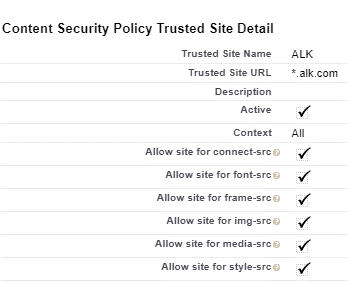
- Make sure these custom Account fields are displayed for TMS users, properly secured:
- TMS Type
- Transportation Profile
- DBA Name
- Customer Sales Rep
- Default Payment Method
- Posting City
- Posting State/Province
- Time zone
- Make sure the Transportation Role field is displayed for TMS users on the Contact page layout.
- Provide appropriate CRUD access to each user profile for each TMS table.
- Tailor page layouts and lightning record pages as appropriate for each profile.
- Please read the Revenova TMS User Guide for a detailed description of other configuration settings and customizations available in the application.
Initial Accounting Seed Installation
- Install the Accounting Seed managed package and follow their configuration instructions.
- Install the TMS-Accounting Seed extension package.
- Add “Transportation” to the Product table ProductFamily field as a picklist choice.
- Make the new TMS Accounting Admin tab visible to the system administrators.
- From the TMS Accounting Admin tab:
- Set all the Global Default fields you can and click Save.
- Click the Create Default Products button if you do not have default products available or selected on the right side of the Global Defaults section.
- If the Unlinked Items sections is not empty:
- Click the Create/Match Products for Unlinked Accessorials button to associate products to all your unlinked accessorials.
- Click the Create/Match Products for Unlinked Taxes button to associate products to all your unlinked sales taxes.
- After clicking these two buttons the Unlinked Items section should be empty.
- Provide access to appropriate internal users for the following Visualforce pages/data:
- TMSAccountingAdmin
- Add as a visible tab for appropriate internal user profiles.
- BillingAutoCreation
- Add the Create Billing button to the Customer Quote related list on the Load page layout.
- BillingTaxUpdate
- Add the Calc TMS Tax button to the Billing page layout.
- BillingEDISend
- Add the Send via EDI button to the Billing page layout.
- BillingGenerateAndSend
- Add the Send Invoices button to the Billing tab list view
- BillingBatchPost
- Add the Batch Post button to the Billing tab list view.
- BillingBatchUnpost
- Add the Batch Unpost button to the Billing tab list view.
- PayableAutoCreation
- Add the Create Payable button to the Carrier Quote related list on the Load page layout.
- PaymentProcessorSubmit
- Add the Submit to Payment Processor button to the Payable page layout.
- PaymentProcessorStatus
- Add the Payment ProcessorStatus button to the Payable page layout.
- PaymentProcessorSubmitBulk
- Add the Submit to Payment Processor button to the Payable list views
- PaymentProcessorStatusBulk
- Add the Payment ProcessorStatus button to the Payable list views.
- InvoiceAdjustment
- Add the Adjust button to the Payable page layout.
- PayableBatchPost
- Add the Batch Post button to the Payable tab list view.
- PayableBatchUnpost
- Add the Batch Unpost button to the Payable tab list view.
- EPaymentDetail
- Add the ePayment related list to the Load page layout.
- Add the New button to this related list.
- BatchPostAndPay
- Add the Post and Pay button to the Payable list view.
- TMSAccountingAdmin
- Drag all fields desired onto the Billing page layout.
- Drag all fields desired onto the Payable page layout. The Payment Processor XXX fields relate to the TriumphPay integration.
- From a list view, make sure all Product records have the appropriate Revenue GL Account and Expense GL Account values.
- Add the Unapplied Cash/Credit Memos field to the Shipper/Consignee Transportation Profile page layout right below the Credit Limit field.
- Remove all access and visibility to the Customer Invoice and Vendor Invoice tables:
- Remove related lists from Load page layout.
- CRUD access should be none for these tables for all profiles.
- Hide the Customer Invoice and Vendor Invoice tabs from all profiles.
- See the User Guide for instructions on setting up NACHA file generation.
- NO SECURITY PROFILES SHOULD HAVE DELETE RIGHTS ON THE EPAYMENT TABLE.
TMS Commissions – Installation Instructions
- Before installing the application,
- If the customer is using the Revenova Customer and Vendor Invoice objects then you will need to turn history tracking for the following tables/fields;
- rtms__CustomerInvoice__c.rtms__Invoice_Total__c
- rtms__CarrierInvoice__c.rtms__Accessorial_Charges__c
- rtms__CarrierInvoice__c.rtms__Adjustments__c
- rtms__CarrierInvoice__c.rtms__Line_Haul__c
- rtms__CarrierInvoice__c.rtms__Fuel_Surcharge__c
- If the customer is using Accounting Seed, then turn history tracking on for the following tables/fields;
- AcctSeed__Billing__History.AcctSeed__Status__c
- AcctSeed__Billing_Line__History.AcctSeed__Rate__c
- AcctSeed__Payable__History.AcctSeed__Status__c
- AcctSeed__Payable_Line__History.AcctSeed__Amount__c
- If the customer is using the Revenova Customer and Vendor Invoice objects then you will need to turn history tracking for the following tables/fields;
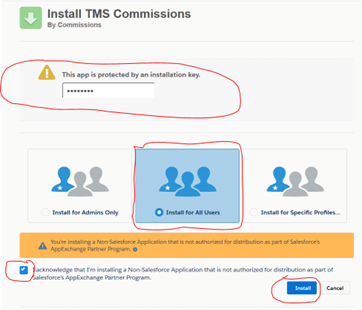
- Obtain the current installation URL and password from your Revenova representative.
- Check the option to "Install for All Users"
- Check the "I acknowledge…" checkbox
- Click the "Install" button"
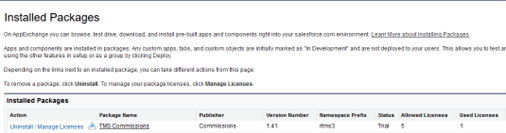
- Once the application is installed, assign licenses TMS Commission license to user who require access to the data.
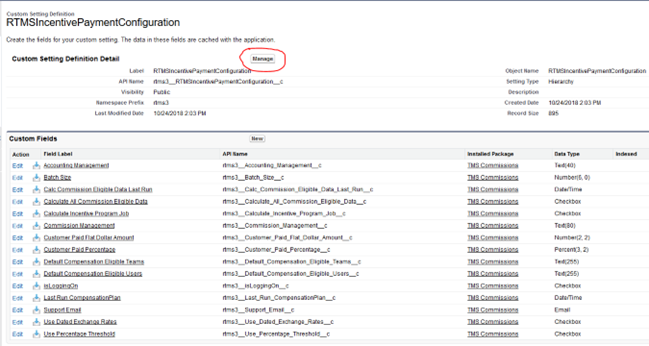
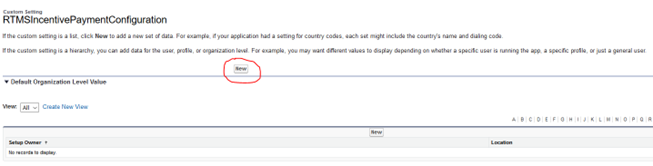
- Setup the Incentive Payment Configuration.
- Go to Setup > Develop > Custom Settings
- Click on the link RTMSIncentivePaymentConfiguration

- Click on the Manage button
- Click on the New button
- Enter the following information
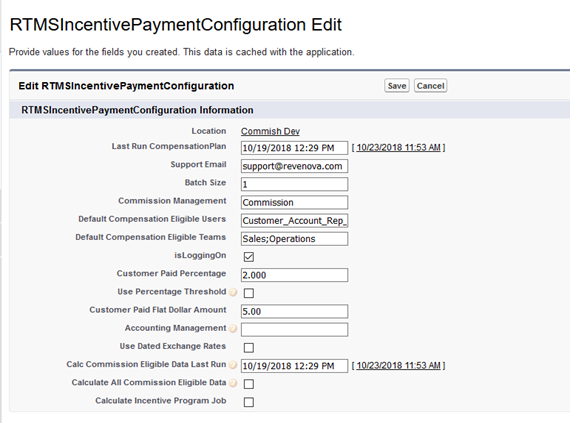 NOTE: If you are installing the app in an org that has Accounting Seed then enter ASAccounting in the Accounting Management field.
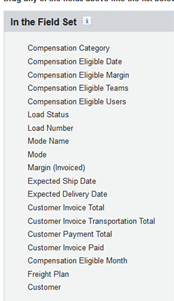
 - If you’re performing an upgrade, ensure that the Load field set ‘Commission’ has the following selected:
- You’re all set up!
Upgrading from a Previous Version
You must perform each set of upgrade tasks (EXCEPT for the package installation step which can skip from any release to the latest) if you are upgrading from a release prior to the previous release.
Follow the upgrade steps from the oldest release to the newest release, in order, for any upgrades that span multiple releases.
You must obtain an earlier version of this document if you are upgrading from a release earlier than 7.3.
Release 7.10 Upgrade Instructions
Release 7.10 TMS Upgrade Instructions (ETC: 30 minutes)
Accounting Package Compatibility
Prior to TMS package installation, confirm there is a compatible accounting package version for the options below.
Sage API (Sage 300)
Sage Flat File
Dynamics GP
Contact Professional Services with any questions.
Items in blue can be skipped if the feature is not being used. Structural changes in red should always be made.
- You must install and test in the sandbox before upgrading production.
- You must have installed and completely configured Release 7.9 before installing this release.
- SFDC/TMS Pre-Configuration
- For Accounting Seed customers, do not install this TMS release until you have the Accounting Seed Bridge package URL also. They must be upgraded at the same time.
- Turn off/review carefully de-duplication rules and Account/Contact validation rules as they may prevent automatic creation of accounts and contacts in various TMS pages.
- From Setup 🡪 Data Management 🡪 Data Integration Rules activate Geocodes for Account Shipping Address.
- Turn on State and Country Picklists unless there is a backward-compatibility issue with other packages or customizations.
- Make sure the customer has not added any values to the Load table’s Sales Status or Load Status picklist fields or the Stop table’s Stop Status picklist field.
- If you have trouble deleting items in the Lightning UI, change to the Classic UI to perform the deletions.
- Obtain the 7.10 installation URL and password from your Revenova representative.
- Install the upgrade. Wait for the “installation succeeded” email.
- From TMS Admin 🡪 Configuration click on the Reset Reference Data button ONCE and wait for the email indicating completion. The process does the following:
- Updates all Lanes with an Origin Type or Destination Type of State or Province with the country in this order: US, CA, and then MX. See below for examples:
- If a Lane with MI is found, the country is set to US, not MX.
- If a Lane with state/province BC is found, the country is set to CA, not MX.
- Lanes will be renamed to include the country: “MI to BC” will be renamed to “MI US to BC CA.”
- Updates all Lanes with an Origin Type or Destination Type of State or Province with the country in this order: US, CA, and then MX. See below for examples:
- Inbound EDI 210 Freight Charge Item Enhancements
If an org. is using or will use inbound EDI 210 transactions for Carrier invoices and would like to use itemized freight charges, complete the steps below.- Add the new Vendor Invoice fields (Origin/Destination fields listed below in the field summary table and shown below in the screenshot) to the Vendor Invoice Page Layout(s).

- Add the Vendor Invoice Freight Charge Items Related List to the Vendor Invoice Page Layout(s). Update the CRUD access to the new Vendor Invoice Freight Charge Item object and all the fields on it, as well as the new fields on the Vendor Invoice object.
- If using Cleo as the EDI VAN to receive EDI 210 Carrier invoices with these itemized freight charges, you must contact them to confirm the configuration and mapping of the new itemized freight charge elements in the 210 is complete (see the TMS 7.10 EDI Specification document for details on the new elements). Note that you do NOT need to contact Kleinschmidt for this update if Kleinschmidt is the EDI VAN. The update has already been implemented on their side.
- Add the new Vendor Invoice fields (Origin/Destination fields listed below in the field summary table and shown below in the screenshot) to the Vendor Invoice Page Layout(s).
- Delete the following obsolete Visualforce pages:
- CarrierPaymentAction.page
- EPayment.page
- RateCalculationManagement.page
- ZoneSetup.page
- LaneIQ Enhancements
- From the Object Manager, choose the Lane object and then select Fields & Relationships.
- Click the Destination State/Province field and on the Controlling Field option click the New link. Choose Destination Country as the Controlling Field and Destination State/Province as the Dependent Field. Click Continue. Verify that the correct state selections appear in the US/MX/CA columns as shown in the screenshots below. Note: Select View All to see all the available columns and to display the US column. The final screenshot is of the Canada and Mexico columns! Click Save when the values have been verified.
- Perform the same operation for the Origin State/Province field such that Origin Country is the Controlling Field and Origin State/Province is the Dependent Field. Note: Select View All to see all the available columns and to display the US column. The final screenshot is of the Canada and Mexico columns! Click Save when the values have been verified.
U.S.:


Canada: Mexico:

 Note:If LaneIQ is located on the home page or accessed via the standalone widget, it may not load Quote History information. An icon spins instead of rendering quote information.
When this occurs:- Click on the Setup drop-down in the upper-right corner.
- Choose Edit Page to open the Lightning App Builder. Do not change any settings.
- Click Save in the upper-right corner.
- Results now render in the Sales Quote History section of LaneIQ.
- Make sure all relevant TMS batch jobs are running and/or scheduled. See User Guide for suggested run times.
Release 7.10 Field/Field Set Modification Summary – TMS
| Object | Field/Field Set | Action | Populated | Notes |
|---|---|---|---|---|
Document Cross Reference | Is POD | Add | Auto | HubTran Support |
Vendor Invoice | Destination City | Add | Auto | Inbound EDI 210 Support |
Vendor Invoice | Destination Country | Add | Auto | Inbound EDI 210 Support |
Vendor Invoice | Destination Name | Add | Auto | Inbound EDI 210 Support |
Vendor Invoice | Destination Postal Code | Add | Auto | Inbound EDI 210 Support |
Vendor Invoice | Destination State | Add | Auto | Inbound EDI 210 Support |
Vendor Invoice | Destination Street | Add | Auto | Inbound EDI 210 Support |
Vendor Invoice | Origin City | Add | Auto | Inbound EDI 210 Support |
Vendor Invoice | Origin Country | Add | Auto | Inbound EDI 210 Support |
Vendor Invoice | Origin Name | Add | Auto | Inbound EDI 210 Support |
Vendor Invoice | Origin Postal Code | Add | Auto | Inbound EDI 210 Support |
Vendor Invoice | Origin State | Add | Auto | Inbound EDI 210 Support |
Vendor Invoice | Origin Street | Add | Auto | Inbound EDI 210 Support |
Vendor Invoice Freight Charge Item | Freight Charge | Add | Auto | Inbound EDI 210 Support |
Vendor Invoice Freight Charge Item | Freight Charge Item Number | Add | Auto | Inbound EDI 210 Support |
Vendor Invoice Freight Charge Item | Item Description | Add | Auto | Inbound EDI 210 Support |
Vendor Invoice Freight Charge Item | NMFC Class (Rated As) | Add | Auto | Inbound EDI 210 Support |
Vendor Invoice Freight Charge Item | Quantity | Add | Auto | Inbound EDI 210 Support |
Vendor Invoice Freight Charge Item | Rate | Add | Auto | Inbound EDI 210 Support |
Vendor Invoice Freight Charge Item | Unit | Add | Auto | Inbound EDI 210 Support |
Vendor Invoice Freight Charge Item | Vendor Invoice | Add | Auto | Inbound EDI 210 Support |
Vendor Invoice Freight Charge Item | Weight | Add | Auto | Inbound EDI 210 Support |
Vendor Invoice Freight Charge Item | Weight Units | Add | Auto | Inbound EDI 210 Support |
Release 7.10 Accounting Seed Integration Upgrade Instructions (ETC: 15 Minutes)
Accounting Seed customers must have BOTH the TMS and Accounting Seed Bridge packages before upgrading. Complete the TMS Upgrade installation before installing the Accounting Seed Bridge package.
Items in blue can be skipped if the feature is not being used. Structural changes in red should always be made.
- You must install and test in the sandbox before upgrading production.
- You must have installed Release 7.9 before installing this release.
- Obtain the 7.10 installation URL and password from your Revenova representative.
- Install the upgrade. Wait for the “installation succeeded” email.
Release 7.10 Field/Field Set Modification Summary – Accounting Seed Integration
| Object | Field/Field Set | Action | Populated | Notes |
|---|---|---|---|---|