The Unmatched Invoice Transaction Lightning Web Component provides the ability to match inbound invoice, EDI 210, or EDI 410 transactions with a Load or Vendor Invoice. For more information on matching logic, see the following links.
Unmatched Invoice Transaction LWC
From the App Launcher, search for Unmatched Invoice Transactions. Select the application from the list of results. For convenience, add the Unmatched Invoice Transactions item to the Navigation bar.

Inbound invoice information that does not match to a Load is displayed in the list view as shown below. Select the Pending list view from the drop-down to display the Unmatched Transaction records with the status. For additional context when managing Unmatched Transaction records, add or remove fields from the list view as necessary.
View additional column information by clicking the caret and selecting Wrap Text.
When an Unmatched Transaction record is created, the Invoice Transaction Status for the record is Success. However, the Status Log shows the invoice was not added to a Load.

Each Unmatched Transaction record contains a fingerprint of the inbound payload. These fingerprints are compared based on multiple field matches. When they do not match, a new Unmatched Transaction record is created with the Duplicate Indicator field shown below.

The following scenarios describe the circumstances that result in the creation of an Unmatched Invoice Transaction record.
SMC EVA Invoice Transactions
See the SMC3 EVA invoice matching logic here. Invoice transactions are matched against 8 criteria before generating an Unmatched Invoice Transaction record.
EDI Invoice Transactions
Scenario 1 (210 & 410 Invoices)
The Trading Partner (CarrierTradingPartnerId field) does not match a TMS Account record.
No Unmatched Invoice Transaction record is created without a matching Account.
Scenario 2 (210 & 410 Invoices)
The Trading Partner (CarrierTradingPartnerId field) matches a TMS Account record.
Multiple Load PRO Numbers match the PRO Number.
An Unmatched Invoice Transaction record is created.
Scenario 3 (410 Rail Invoices)
The Trading Partner (CarrierTradingPartnerId field) matches a TMS Account record.
No Load PRO Number is matched to the Pro Number.
The Trading Partner (CarrierTradingPartnerId field) matches a TMS Account record.
The TMS attempts to match the Waybill Number to the Load Waybill Number.
If multiple Load records match the Waybill Number, an Unmatched Invoice Transaction record is created.
Scenario 4 (210 & 410 Invoices)
The Trading Partner (CarrierTradingPartnerId field) matches a TMS Account record.
No Load PRO Number is matched to the Pro Number.
No Load Waybill Number is matched to the Pro Number.
The Trading Partner (CarrierTradingPartnerId field) matches a TMS Account record.
The TMS searches for a match on the Shipment Id to the Load Number.
No Load Number or multiple Load Numbers match the Shipment Id.
An Unmatched Invoice Transaction record is created.
Scenario 5 (210 & 410 Invoices)
The Trading Partner (CarrierTradingPartnerId field) matches a TMS Account record.
The EDI transaction payload does not contain a PRO Number or a Waybill Number.
The TMS searches for a match on the payload Shipment Id to the Load Number.
No Load Number or multiple Load Numbers match the payload Shipment Id.
An Unmatched Invoice Transaction record is created.
From the list of Unmatched Invoice Transaction records select the record to open it in the LWC.

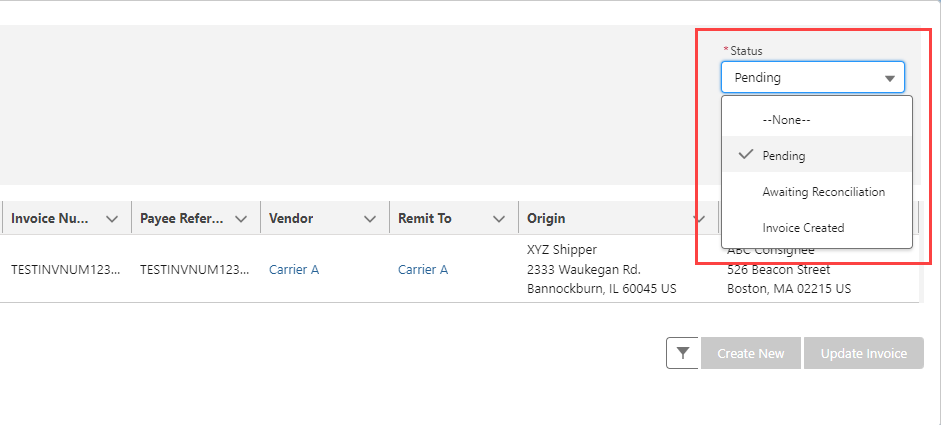
Display Loads based on the Status in the upper-right corner. In the screenshot below, the Loads are all in a status of Pending. Select another status by clicking the pencil icon and choosing from the available options.

When an Invoice Transaction is matched to a Load, the status changes to Invoices Created. Choose the pencil icon to select a different status. Select Awaiting Reconciliation to indicate a disputed payload. Click Save when finished.
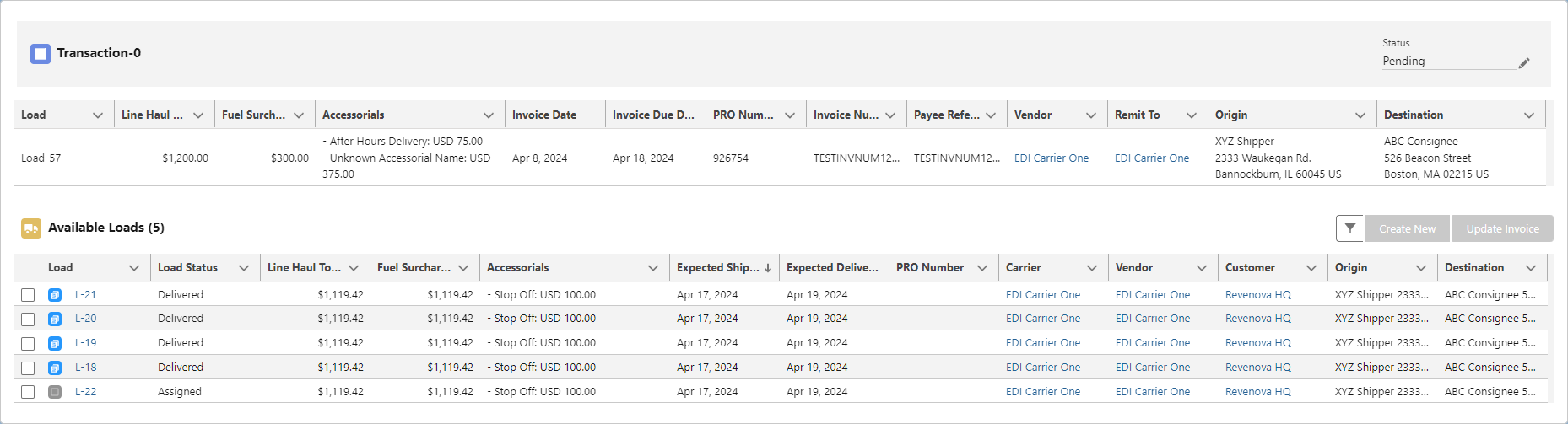
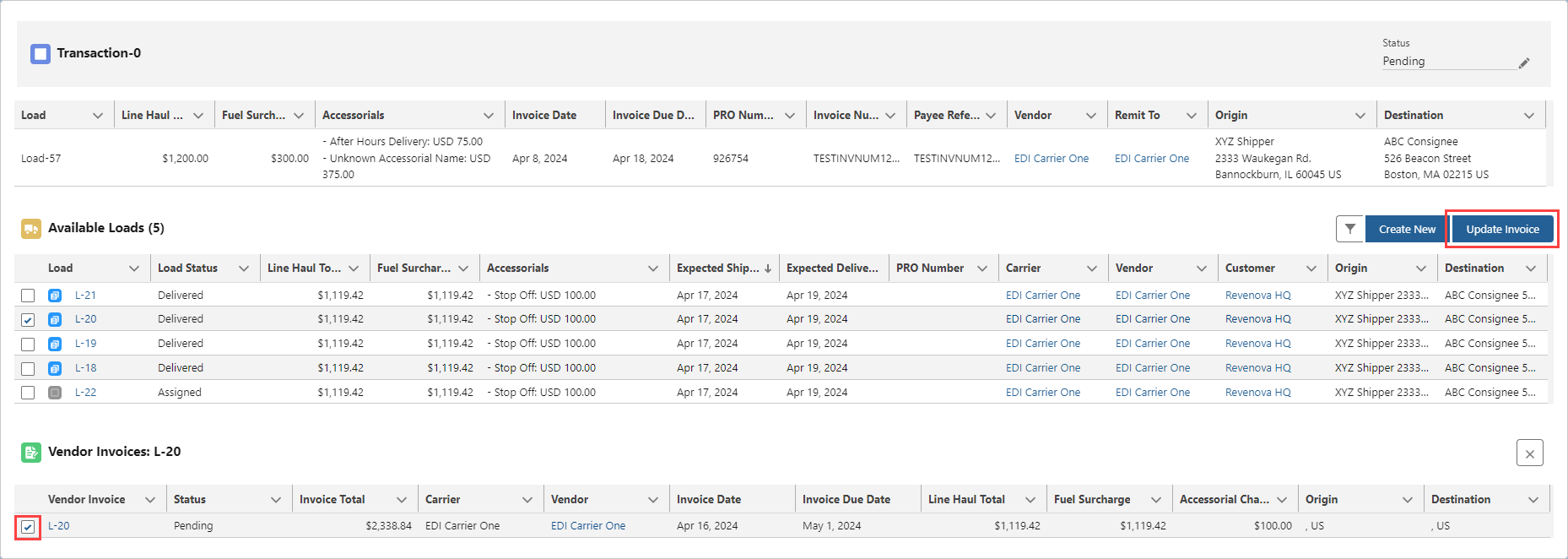
Match transactions to Loads by selecting from the list of available Loads below the transaction.
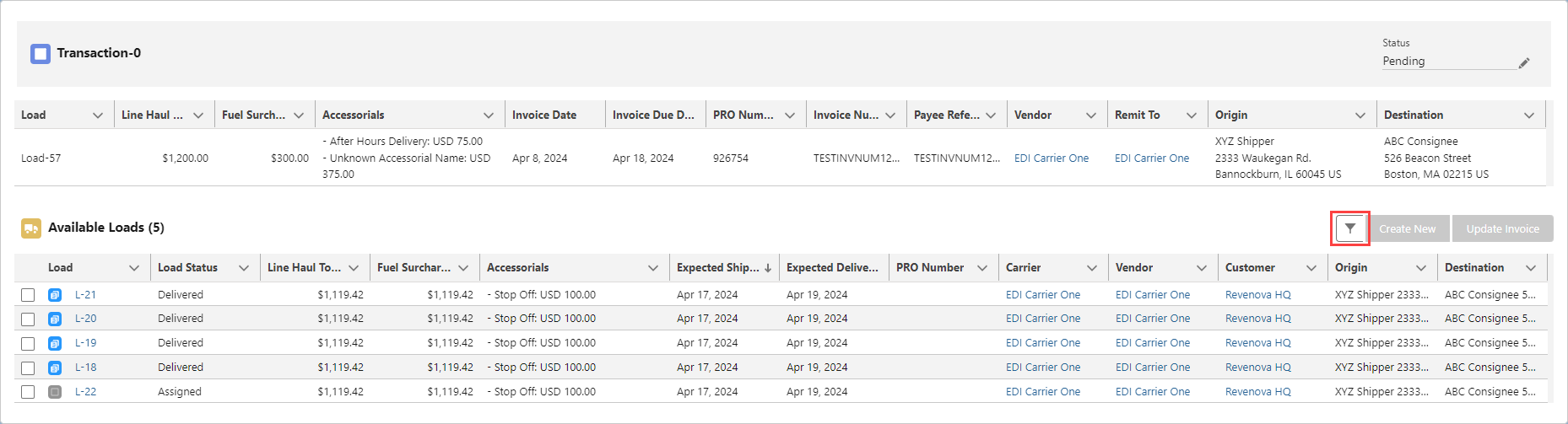
Click the filter button to open the modal. Filter Loads by the following criteria to narrow available Loads to a manageable selection.
Carrier
Customer
Load Status
A lookup to the Load Number provides the ability to find a specific Load.
Select the appropriate Load to match to the transaction by checking the box. Click the Create New button to generate a new Vendor Invoice record.
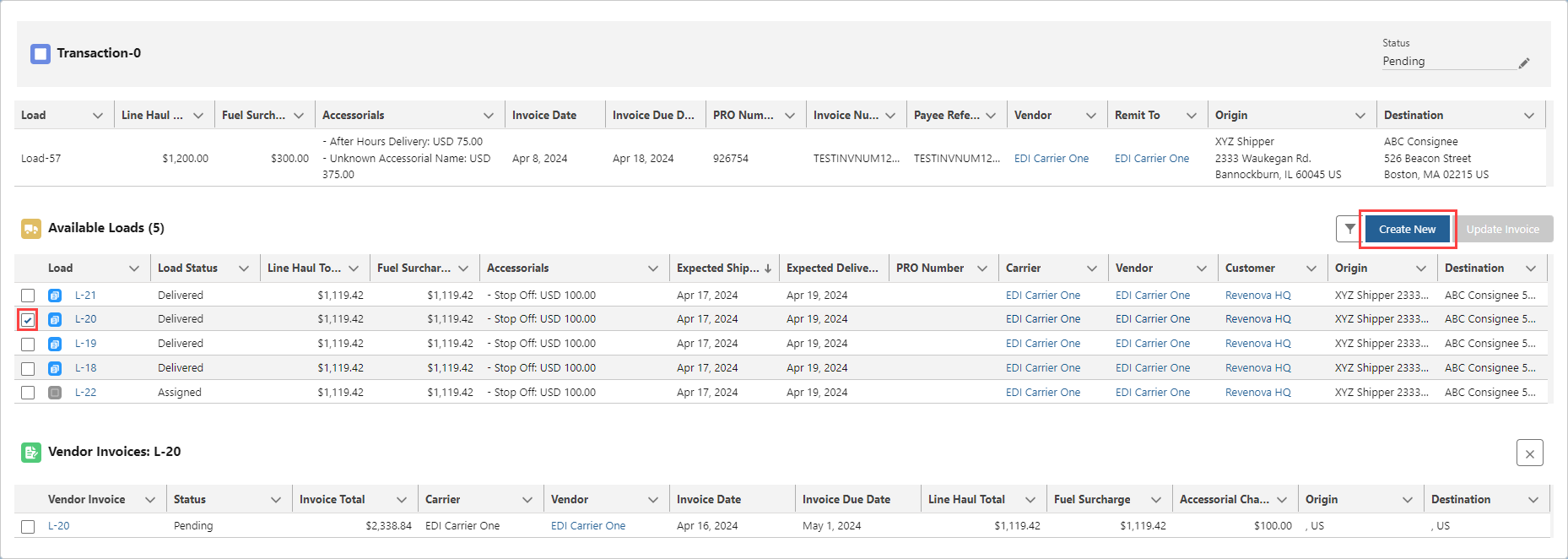
Any existing Vendor Invoice records related to the selected Load display below the list of available Loads. Update an existing invoice by selecting the checkbox for the invoice. Click the Update Invoice button to update the Vendor Invoice with the new values from the invoice transaction.
Once the Vendor Invoice is created or updated the Status and Load fields change to reflect the match. In the case of an invoice update, changes in the Payload field may also be visible.