Overview
The SMC3 integration contains two components, RateWare and CarrierConnect. SMC3 RateWare provides tariff-based LTL quoting capabilities. The SMC CarrierConnect component provides transit times and terminal information.
Setup
Tariff Codes
Obtain the API codes for all tariffs license from SMC3 - the name and code.
Tariff Name
API Code
Document all tariff settings for Carrier relationship by lane.
Carrier
Lane
Tariff Settings
Discounts by weight breaks
Surcharges
Floor
FAK Settings
Once all of the licensed tariffs and Carrier information, proceed with the remaining setup.
Enter Credentials
Enable the SMC3 CarrierConnect and RateWare integrations by:
Navigating to TMS Admin,
Select Credentials.
Select the Global Services tab,
Find SMC3 CarrierConnect in the list and open the card. Repeat the following steps with SMC3 RateWare.
Check the Enabled box.
Enter the User ID, Password 1, and Password2 into the text fields.
Click the Save button when finished.
Valid credentials are required from an SMC3 subscription. See examples in the table below.
User ID | Password 1 | Password 2 | Customer Number |
|---|---|---|---|
Username | Password | License Key (alphanumeric) |
Remote Site Settings
Upgrading from previous versions of the TMS may have outdated information. Check that the Remote Site Settings for both the CarrierConnect and RateWare integration URLs are up to date.
Click the Setup Gear icon in the top right corner.
From the drop-down, click Setup.
In the Quick Find Toolbar type Remote Site Settings and click the link.
From the list of remote sites find SMC3 and click the Edit link.
Update the Remote Site URL to match the Service URL below:
Service URL: https://ccxl.smc3.com/ (Carrier Connect)
Service URL: https://applications.smc3.com (RateWare)
Test Service URL: https://ccxl.smc3.com/CarrierConnectXL (Carrier Connect)
Test Service URL: https://applications.smc3.com/RateWareXL/services/soap/v2 (RateWare)
Setup Tariff Name
Setup a Picklist Value for each licensed tariff to use.
From Setup > Object Manager, click the Fields & Relationships tab.
Search and select the Tariff Name field.
In the Values section, click New.
Enter a descriptive name for the Tariff.
Enter the API Name to the exact API Code for the tariff received from SMC3.
Click Save.
Example Tariff Field Names and API Names:
Field Value (Field Name) | API Name |
|---|---|
CzarLite, US/US | LITECZ02 |
RDWY 507, Sec. 3, US/US | RDW50703 |
Ryder US/US | RYDLIT96 |
Edit the Tariff Value that was just created and change the API Name to the exact API code for the tariff received from SMC3.

Setup Carrier Services
The Carrier Service(s) must be setup as linked to SMC3 RateWare.
The Quote Method must be set to API.
The API Provider must be set to SMC3 RateWare and the Credentials field is the Record Id of the SMC3 RateWare credentials from TMS Admin → Credentials.


Setup Rate Entries
Setup each rate entry for each Carrier Service/Tariff/Lane combination.
Navigate to TMS Admin → Rate Entries → New Rate Entry.
Link to the appropriate Customer Transportation Profile or the Default Transportation Profile.
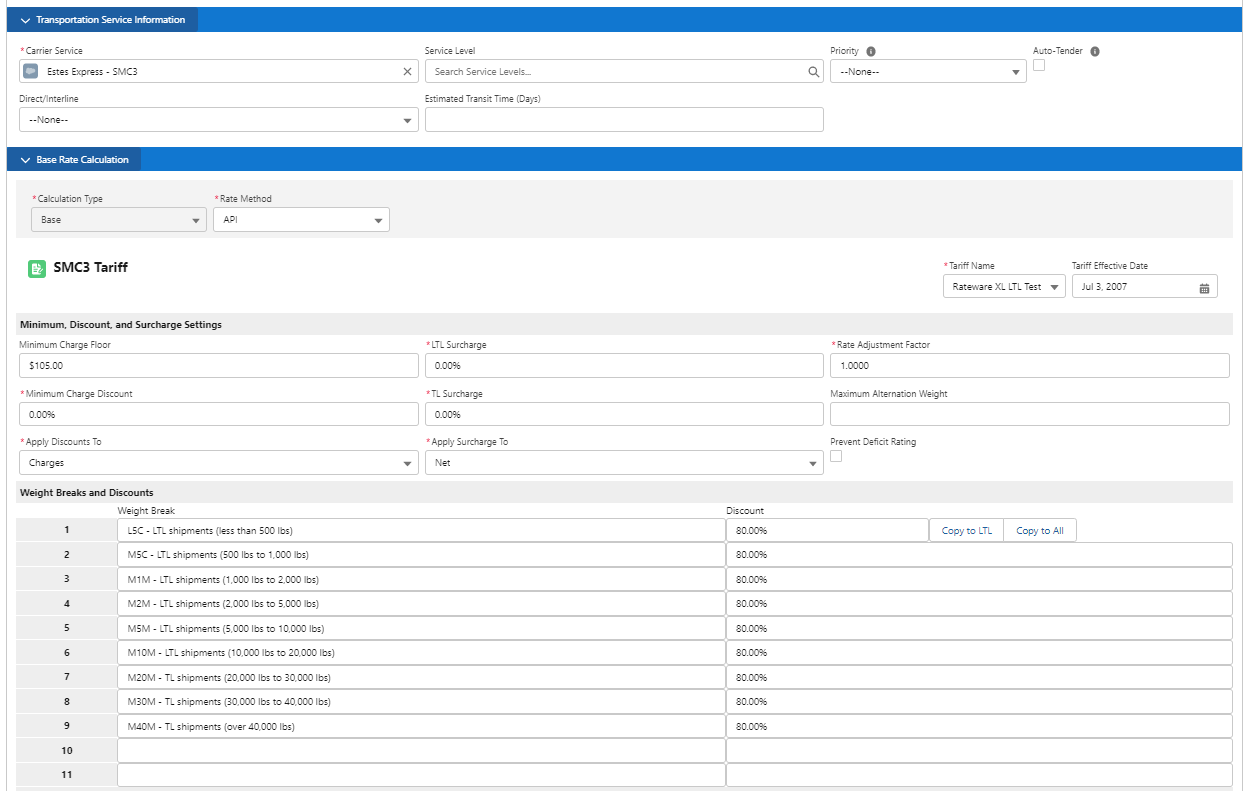
Select a Carrier Service linked to SMC3. If the Carrier Service is not linked to SMC3, the Tariff Schedule lookup field is not visible.
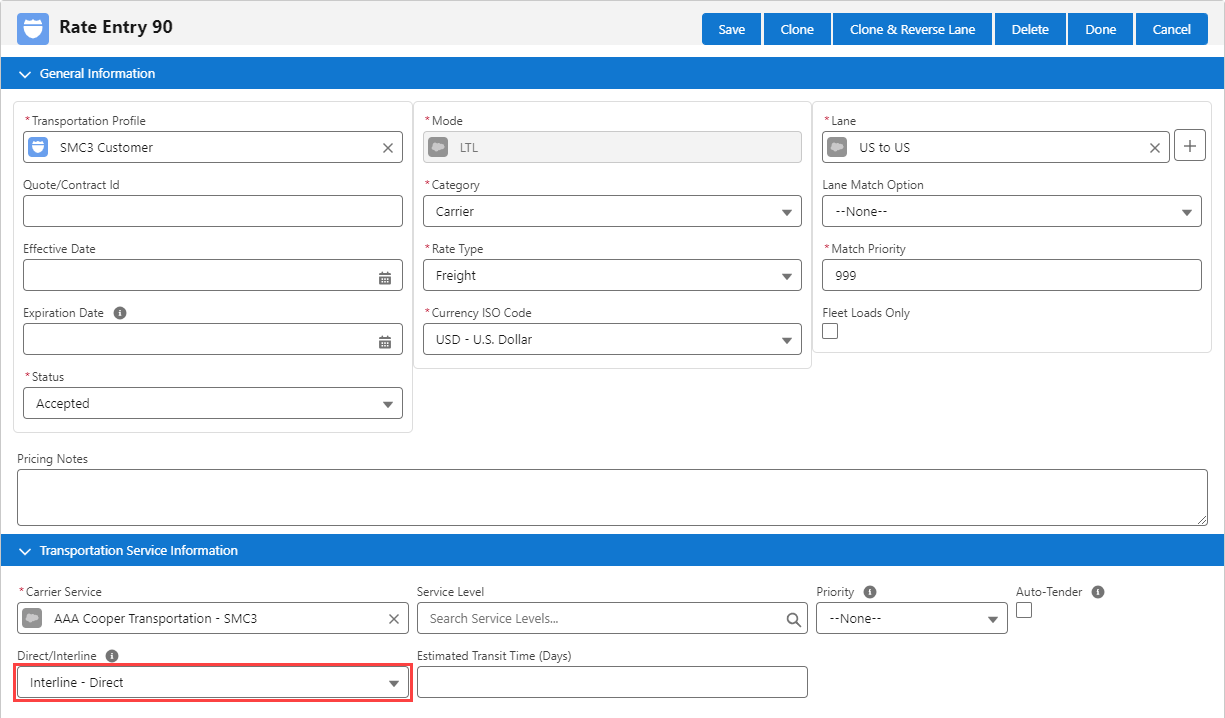
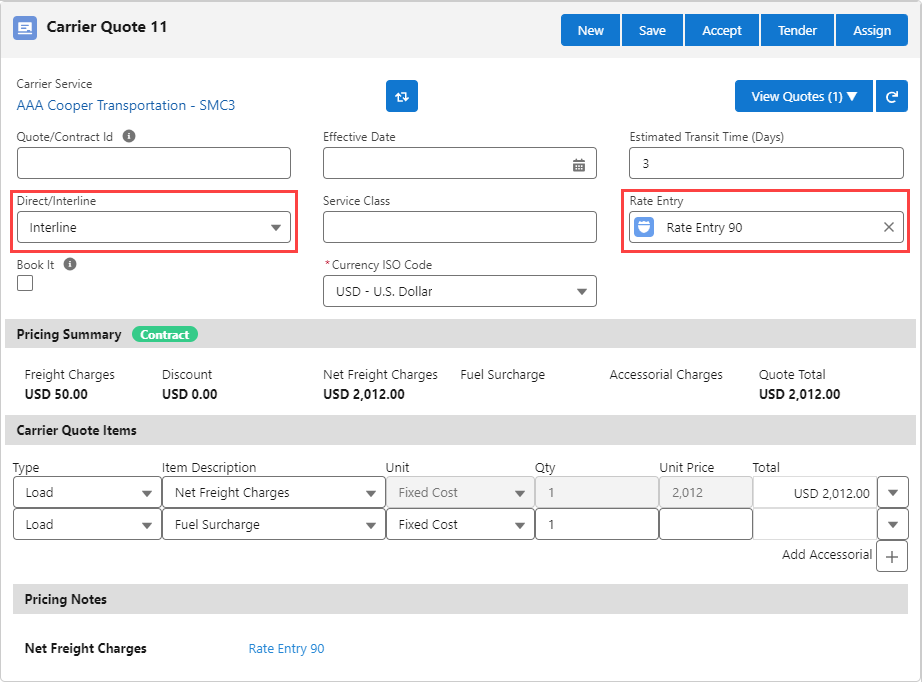
Direct/Interline: The TMS filters returned SMC3 Carrier quotes based on the value selected. See below for more information.
Tariff Name: Select the Tariff from the picklist values available.
Informational Pricing Notes display on the FQA.
The Rate Method in the Base Rate Calculation section is always API for SMC3 Rate Entries.
SMC3 provides Line Haul (only) via their APIs. Carrier Accessorials and Fuel Surcharges must be added to the Rate Entries to incorporate calculated accessorials and fuel surcharges.
Carrier Quote Filtering
Set the Direct/Interline field on the Rate Entry to filter Carrier quotes returned from SMC3 Carrier Connect. Null, Direct, Interline, Partner, and Unspecified picklist selections do not filter Carrier quotes. Select an appropriate Origin Movement Type and Destination Movement Type pair to filter Carrier quotes returned from SMC3. Rate Entries with a Rate Type of Freight only filter returned quotes. See the value matching table below.
Rate Entry Direct/Interline Field | SMC3 Origin Movement Type | SMC3 Destination Movement Type |
|---|---|---|
Direct - Direct | Direct | Direct |
Direct - Interline | Direct | Interline |
Direct - Partner | Direct | Partner |
Interline - Direct | Interline | Direct |
Interline - Interline | Interline | Interline |
Interline - Partner | Interline | Partner |
Partner - Direct | Partner | Direct |
Partner - Interline | Partner | Interline |
Partner - Partner | Partner | Partner |
Not Available (No Quotes) | None/Custom | None/Custom |
Quotes returned with an Origin and Destination Movement Type value of Custom are filtered out as Unspecified.
Rate Entries with a Rate Method of Fuel or Accessorial do not have a Direct/Interline field. They match any applicable Carrier Quotes regardless of Origin or Destination Movement Type values.
Minimum/Maximum Calculation Rates
Rate Entries with a Minimum or Maximum Calculation Rate apply the Direct/Interline field value to the Carrier Quote. See the table below to reference how those values are applied.
Direct/Interline field on Rate Entry | Direct/Interline field on Carrier Quote |
|---|---|
Null | Service value returned from SMC3 |
Direct | Direct |
Interline | Interline |
Partner | Partner |
Unspecified | Unspecified |
Direct - Direct | Direct |
Direct - Interline | Interline |
Direct - Partner | Partner |
Interline - Direct | Interline |
Interline - Interline | Interline |
Interline - Partner | Interline |
Partner - Direct | Partner |
Partner - Interline | Partner |
Partner - Partner | Partner |
Base Rate Calculation
Enter the Tariff Effective Date for all Rate Entry records.
Rate Type > Freight+Fuel+Accessorial is only applicable for P44 Rate Entries.
Negative Discounts
This feature allows a customer to set up a rate entry to make discounts behave like surcharges. Unlike ordinary discounts which reduce a freight charge, negative discounts increase freight charges. The feature works with SMC3 rate entries. With the Apply As Negative Discounts checkbox checked on a Rate Entry, the TMS posts requests to SMC3 for freight rates with discounts omitted. When receiving rates back from SMC3, the TMS adjusts the rates based on the discount table.

SMC3 Quoting + Banyan/Project44 Tender/Track/Images
Hybrid API Carrier Services that employ SMC3 for quoting and Banyan or Project44 for tendering, tracking, and image retrieval may be used. These Carrier Services should be set up with the SMC3 RateWare Credentials Id.