Overview
Rate Entry Detail
.jpg)
The Rate Entry Detail Lightning Web Component (LWC) is found on the Rate Entry lightning record page. From TMS Admin, click the Rate Entries link and then the New button to open the LWC. It is also available on Shipper/Consignee Transportation Profiles on the Rate Entries related lists.
This LWC allows users to create stored/negotiated rates for use in the TMS. These stored rate entries populate the customer and Carrier quotes for a load when matching the appropriate criteria. Many rate entries can populate a single quote.
For bulk importing Rate Entries, see Other Stored Rates.
There are several required fields to create a Rate Entry. They include:
Transportation Profile
Mode
Lane
Category (Customer or Carrier)
Rate Type
Match Priority (set by the lane, default is 999)
Currency ISO Code (default is USD - U.S. Dollar)
Status
Rate Method
Rate
The Match Priority field value is set by the lane but can be overridden on the Rate Entry record.
Other fields:
Quote/Contract Id
Effective Date: determines when the Rate Entry takes effect.
Expiration Date: determines when the Rate Entry expires.
Lane Match Option: select for the lane match to be Interstate Only or Intrastate Only.
Fleet Loads Only: only match on fleet loads.
Auto-Apply: for accessorial rate types.
Pricing Notes
Rate Type field (additional fields when selected):
None
Freight + Fuel + Accessorial (Service Level)
Freight + Fuel (Fuel surcharge field)
Freight (Service Level, Priority, Auto-Tender, Direct/Interline, Estimated Transit Time (Days))
Fuel (Fuel Surcharge field, only Transportation Service Info for Carrier Service)
Accessorial (Accessorial)
Enter the Rate Entry information as required.
Transportation Service Information
Customer category types remove any fields from the Transportation Service Information section.
Selecting a Carrier category type enables the Carrier Service required field. The Carrier Service must match the Mode selected. In the text field, search for the appropriate Carrier Service this Rate Entry applies.

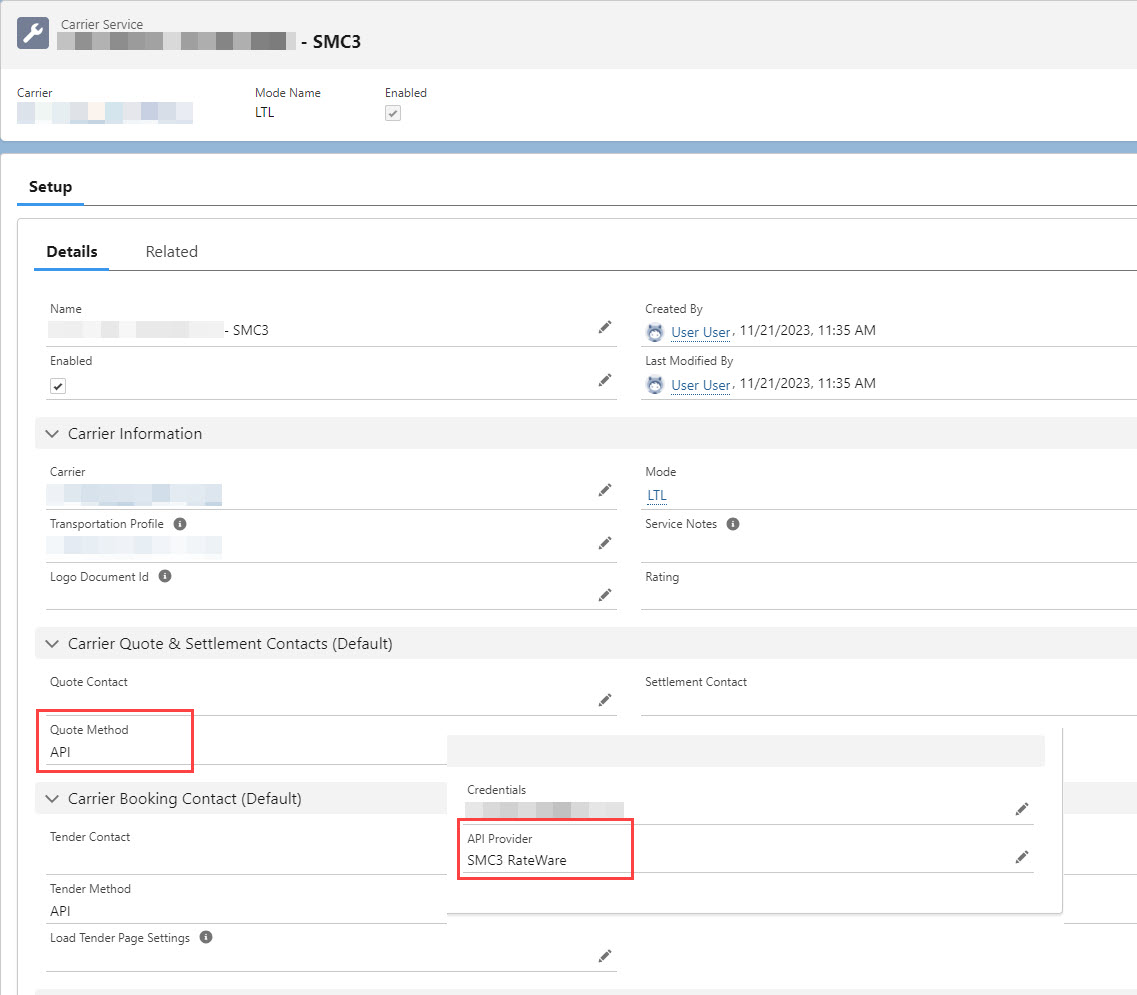
If necessary, include a Service Level for the specified Carrier Service.

Base Rate Calculation
The base rate calculation section determines pricing for the Rate Entry. Select a Rate Method from the picklist. Depending on the selection, relevant fields populate the page to further refine pricing information.
For example, an API Rate Method requires no further information:

LTL Customer Rate Entries that request quotes via the SMC3 API require tariff information. See Tariff-Based Rate Entries.
The Per Pound (Billable) and Per Kilogram (Billable) Rate Methods are based on the DIM factor and volume of the load.

A Per Handling Unit Rate Method requires the additional information of the Handling Units, HU Calculation Method, the HU Max Weight, and the Weight Units.

Minimum & Maximum Charge Calculation
In addition to base rates, minimum and maximum calculations set boundaries on the Rate Entry. Minimum and Maximum Charge Calculations are not required.
See the Calculation Axis Setup below to refine the base, minimum, and maximum charge rate calculations.
If a Minimum or Maximum charge is entered on a Rate Entry, the Carrier quote Freight Surcharge is not applied. For example, if an API Carrier quote is returned and the minimum value included on a Rate Entry is applied, the Freight Surcharge does not render and is not included in any calculations.
Calculation Axis Setup
The Calculation Axis setup allows for finer control over rate calculations.
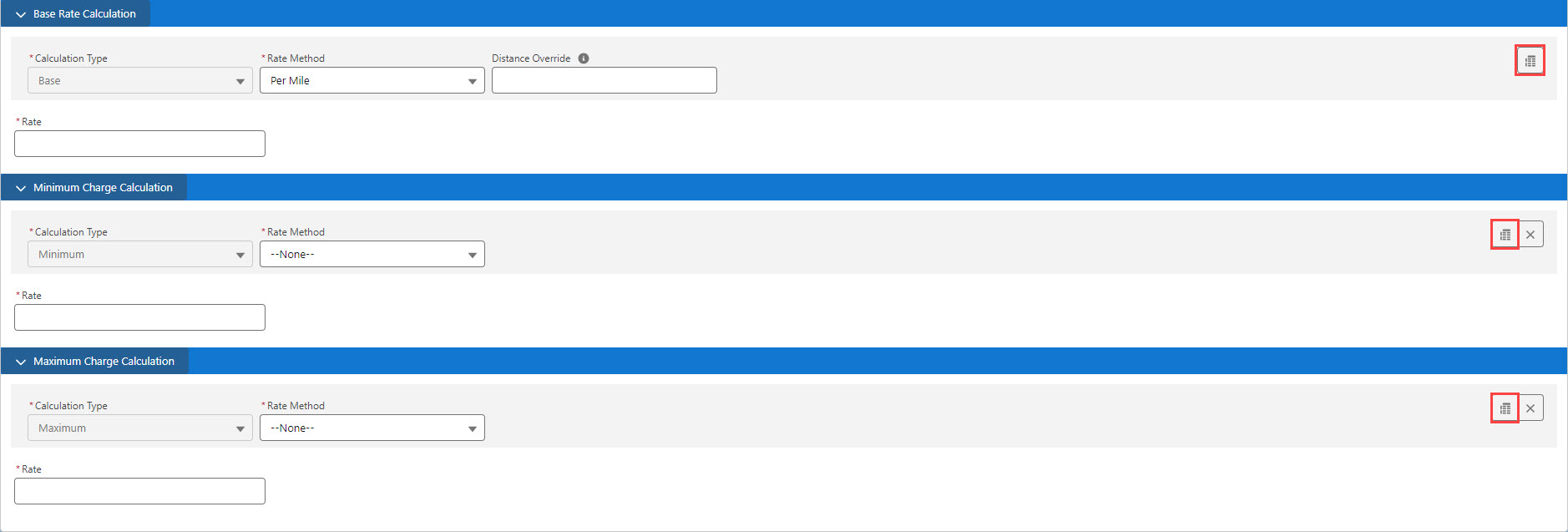
Click the Axis Setup button to create Axis calculations for each charge calculation.
The following screenshot shows a basic Fixed Amount rate type with 3 column, 3 row calculation axis. The calculation Axis Types are the handling unit height and the weight of the load.
Each row and column is defined by the Axis Type, Axis Unit, Range Type, Range Boundary, and Row/Column Count. Add or remove rows and columns with the + and - buttons to the right.
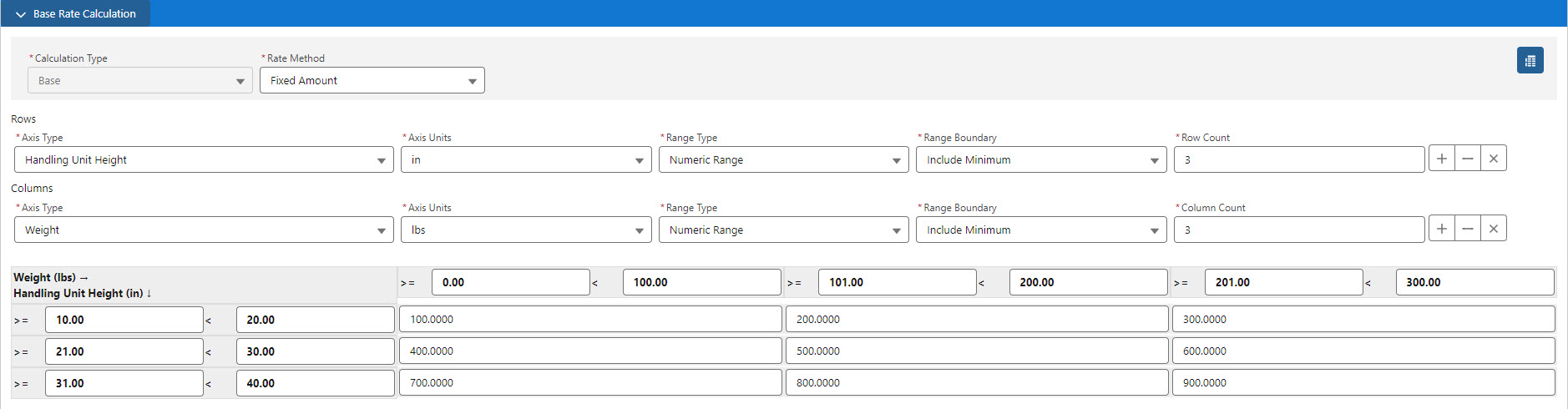
The numbers below correspond to the demonstration screenshot below.
The arrows indicate the direction (row or column) of the type.
The "greater than or equal to" and "less than" operators determine the minimum and maximum values for that particular row.
In this case, greater than or equal to 10 and less than 20.
The "greater than or equal to" and "less than" operators determine the minimum and maximum values for that particular column.
In this case, greater than or equal to 0 and less than 100.
Loads that:
Match the Rate Entry general information and
Contains a line item that meet the conditions of 2 and 3
Are charged a fixed amount of $100.
.jpg)
If a load contains multiple line items, each line item is calculated individually based on the Rate Entry. The rates are then added together for the total amount.
Example:
Line Item 1: 65 lbs., 15 inches = $100.
Line Item 2: 150 lbs., 25 inches = $500.
Total quote amount based on the Rate Entry = $600.
Repeat as necessary for the Minimum and Maximum Charge Calculations Axis calculations.
When complete, click Save to save the Rate Entry. Once saved, several other options are available in the banner.
.jpg)
Additional buttons include:
Clone
Clone & Reverse Lane
Delete
These actions allow for more efficient Rate Entry creation.
Rate Entries for API Integrations
Banyan
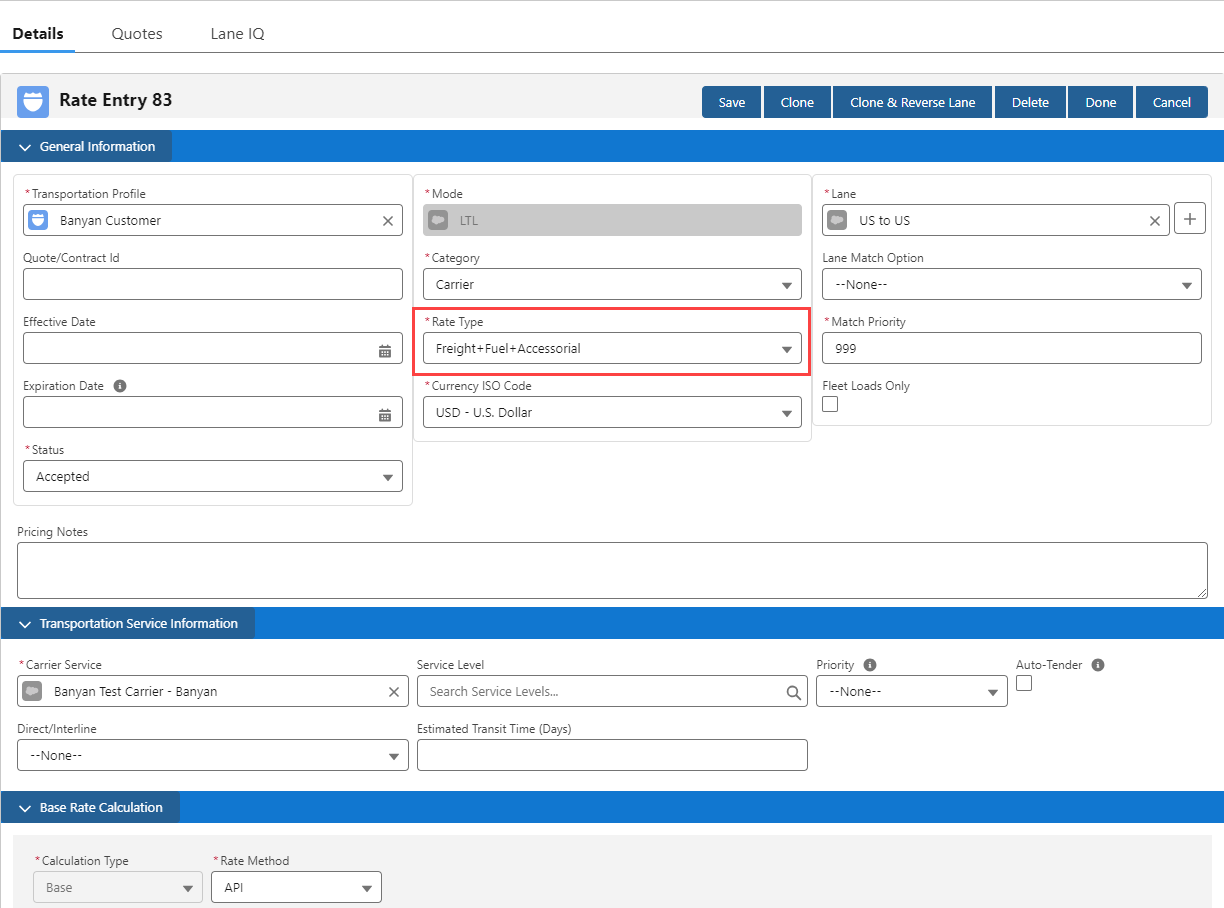
Enter all Rate Entry required fields for new Rate Entries. Each Rate Entry requires:
Transportation Profile
May be set for each Carrier Transportation Profile for specific control.
The Global Default Transportation Profile may also be used. From TMS Admin → Configuration the Default TP field contains the name of the default Transportation Profile.
Category
Carrier
Mode
Automatically set to LTL when a Banyan Carrier Service is selected.
Lane
Lanes are usually set as country to country (US to US, CA to US, US to CA).
Rate Entries are required for each lane. (US to US and US to CA needs 2 Rate Entries)
Rate Type
The Rate Type auto-adjusts based on the Carrier Service selected.
If a Rate Type of Freight only is selected and then a Banyan Carrier Service is selected, the Rate Type changes to Freight+Fuel+Accessorial.
Carrier Service
Select a Banyan Carrier Service.
Save the Rate Entry. Clone the Rate Entry and change the Carrier Service for each Banyan Carrier as necessary.
SMC3
Carrier Connect
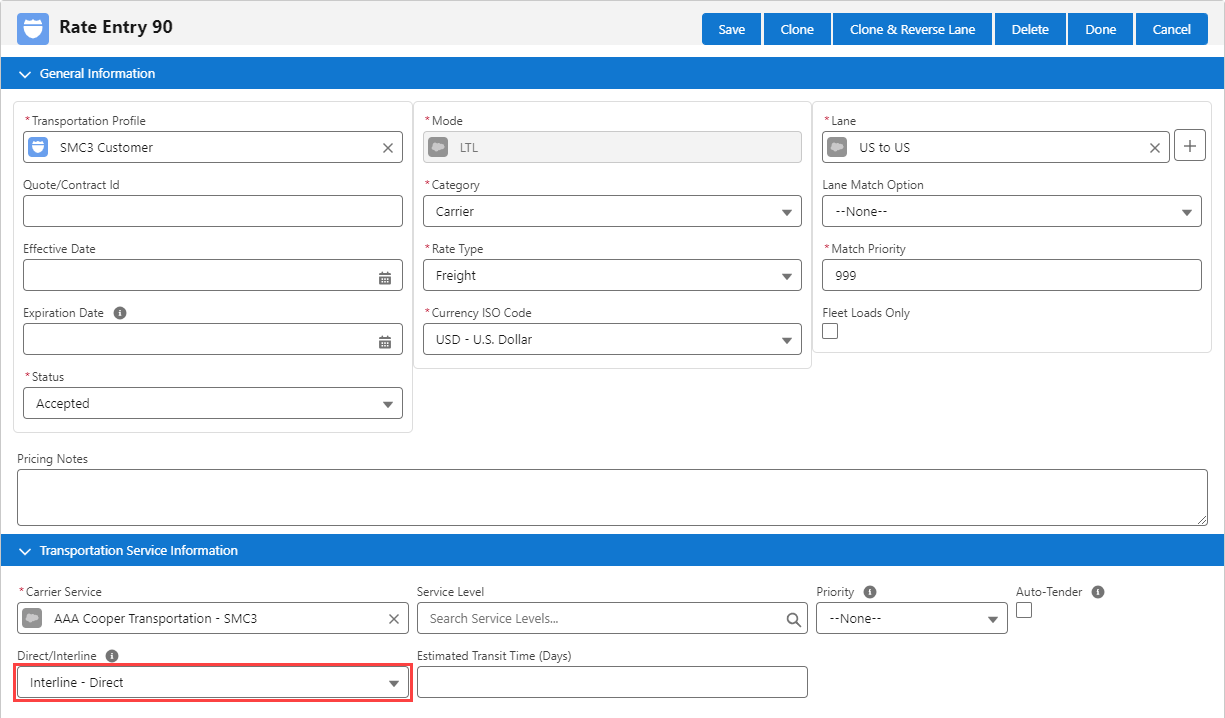
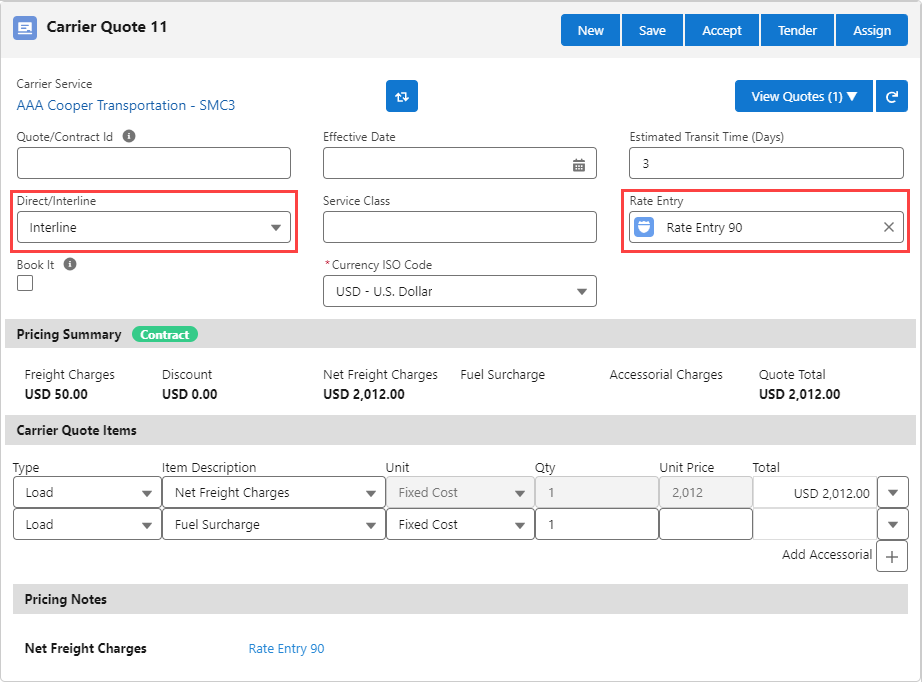
Rate Entries created to match on Carrier quotes returned from the SMC3 Carrier Connect integration may use the Direct/Interline field to filter the quotes. Rate Entries must have a Rate Type of Freight to filter. See the SMC3 integration article for more information regarding setup and functionality.