Overview
Container Console
The Container Console Lightning Web Component (LWC) is located on the container console page. It provides information for container loads in the TMS.
To filter loads in the Container Console LWC:
Provide a name for the list of containers to view.
Set the visibility for the list to either public or private.
Filter by selecting "All Containers" or "My Containers."
Further filter the list of containers by fields or other criteria.
Select the "Default Filter" checkbox to set this view as the default.
.png "Container Console - 1(1).png")
Create the container table by selecting the + button below Fields to Display. Select available fields from the picklist. Repeat as necessary.
Containers may also be filtered based on the criteria entered below Filter Criteria. Click the + button to add additional filter criteria.
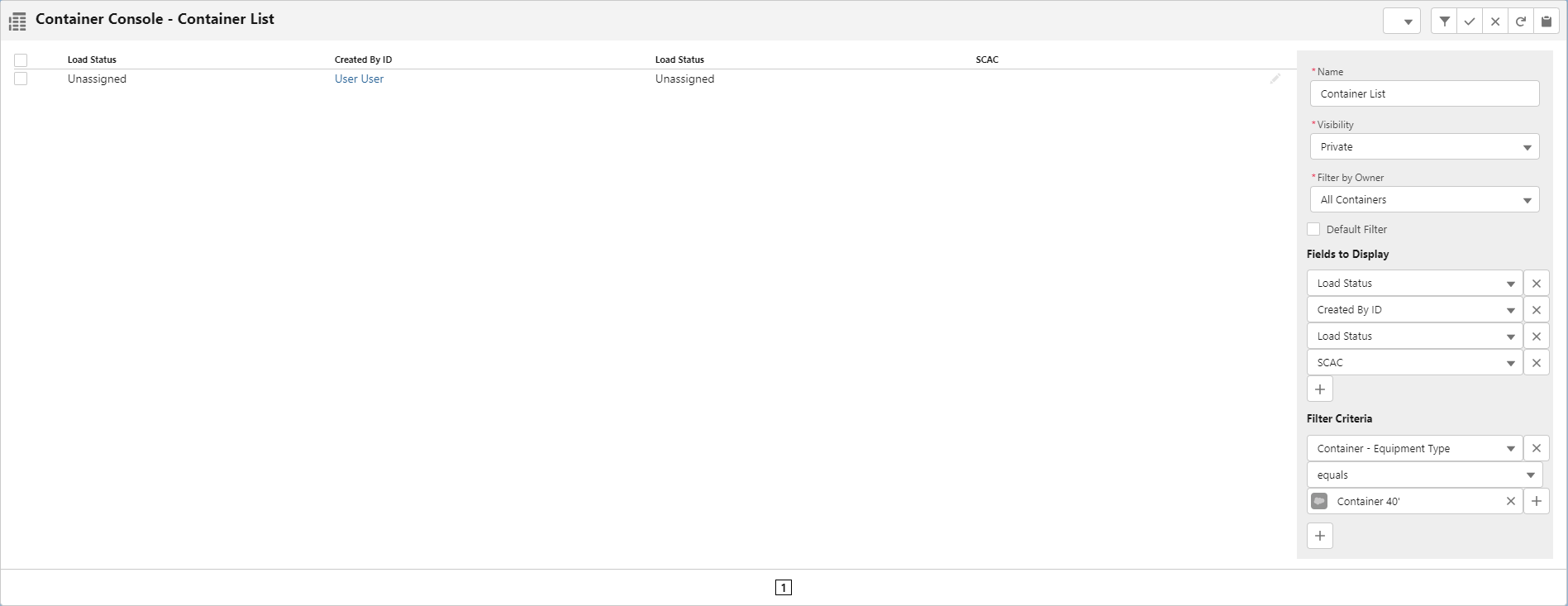
Manage filters with the buttons in the banner at the top-right of the Container Console LWC.
Banner buttons are:
Drop-down menu listing saved filters
Hide Filter
Save Filter
Cancel
Refresh
Copy Data to CSV file
When adding additional filter criteria with the + button, the filter operator behaves as an AND function.