Overview
FreightWaves provides information on the relative negotiating strength for a load . The two components in the TMS that feature the FreightWaves integration are the Lane Conditions Lightning Web Component and the RateIQ Rate Calculation Rules Lightning Web Component.
Setup
Enter Credentials
Enable the FreightWaves integration by:
Navigating to TMS Admin,
Select Credentials.
Select the Global Services tab,
Find FreightWaves in the list and open the card.
Check the Enabled box.
Enter the User ID and Password 1 into the text fields.
Click the Save button when finished.
Valid credentials are required from a FreightWaves subscription.
User ID | Password 1 | Password 2 | Customer Number |
|---|---|---|---|
Required | Required |
Remote Site Settings
Upgrading from previous versions of the TMS may have outdated information. Check that the Remote Site Settings for the FreightWaves integration URL are up to date.
Click the Setup gear icon in the top right corner.
From the drop-down, click Setup.
In the Quick Find Toolbar type Remote Site Settings and click the link.
From the list of remote sites find FreightWaves and click the Edit link.
Update the Remote Site URL to match the Service URL below:
Service URL: https://api.freightwaves.com
Test Service URL: https://api.freightwaves.com
Lane Conditions LWC
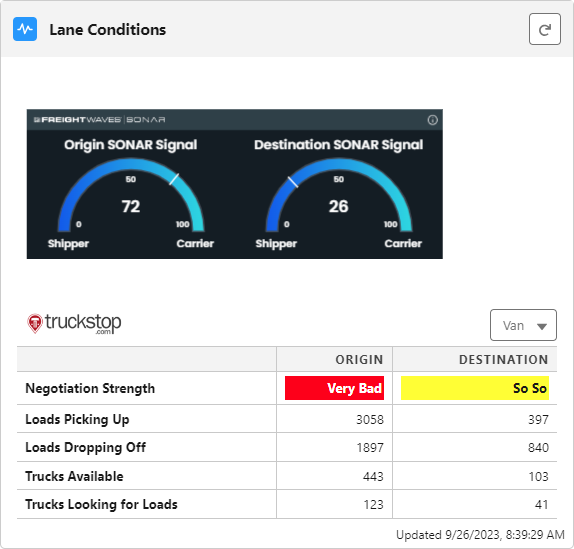
The FreightWaves Sonar component is located on the Lane Conditions Lightning Web Component.
RateIQ Calculation Rules LWC
The FreightWaves integration is also supported when creating RateIQ Calculations under TMS Admin. FreightWaves may added as a data source to Rate Calculation rules. The TMS can utilize FreightWaves data when calculating rates for a load.
.png)