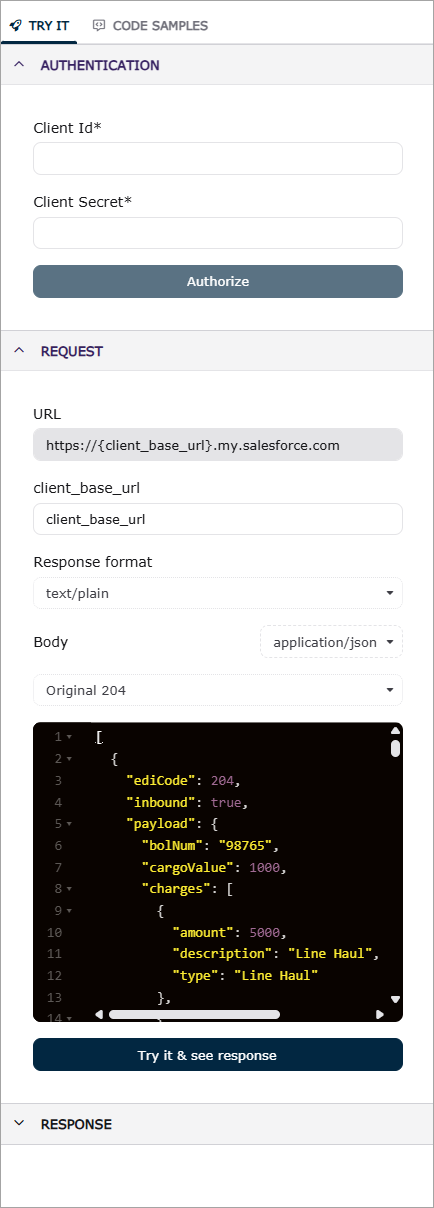
The Try It feature is an interactive tool in the Revenova API documentation that lets users test our API endpoints directly. This guide outlines how to effectively utilize the Try It feature, specifically when working with your sandbox Salesforce org.
Caution: The Try It feature should only be used with your sandbox orgs. Using this feature in production orgs can impact real data and may lead to unintended consequences. Always verify the environment before executing any API calls.
Prerequisites
Before using the Try It feature, ensure that you have the following information from your Salesforce org's External Client App with your preferred Partner VAN:
Consumer Key (for the Client Id field)
Consumer Secret (for the Client Secret field)

Enable CORS in Salesforce Org
To enable proper communication between the Revenova API documentation base and your Salesforce org, you must configure Cross-Origin Resource Sharing (CORS). Follow these steps:
Log in to your Salesforce org and navigate to the Setup area.
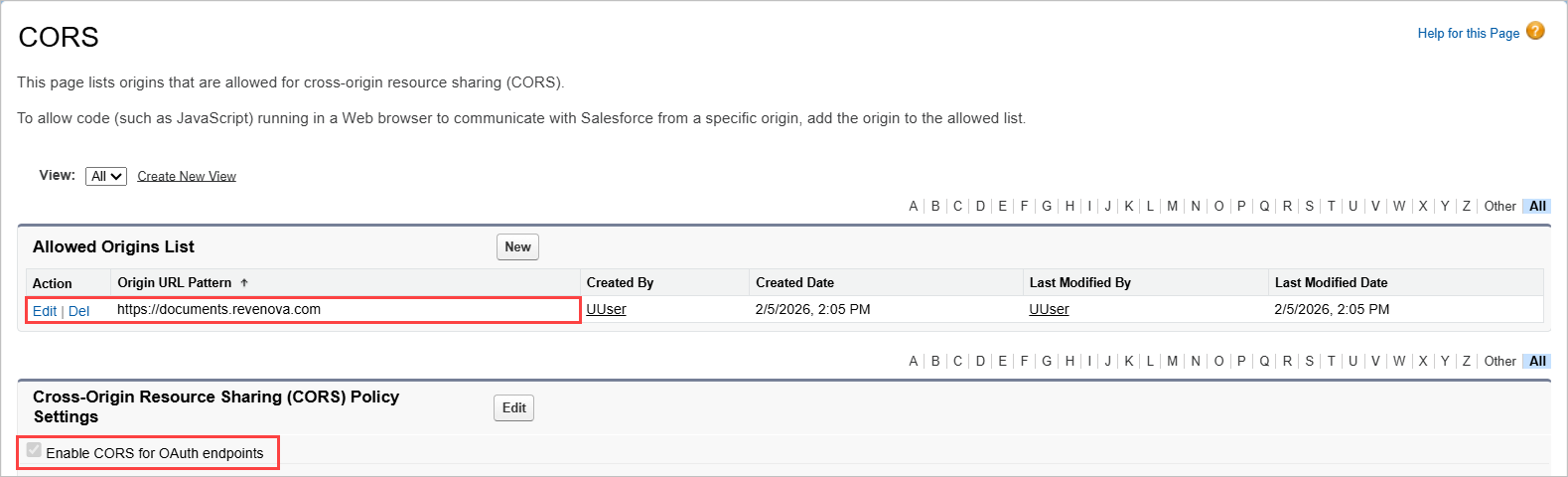
In the Quick Find box, type "CORS" and select "CORS" settings.
Add https://documents.revenova.com to the Allowed Origins List.
Ensure that the option to Enable CORS for OAuth endpoints is checked.
Authorize in the Try It Feature
Once you have your Consumer Key and Consumer Secret, and CORS is enabled, you can start using the Try It feature to test the API endpoints. Follow these steps:
Navigate to the API endpoint you wish to test within the Revenova documentation.
Input the Consumer Key into the Client Id and the Consumer Secret into the Client Secret fields.
Fill in the client_base_url with the URL to the Salesforce org.
Click on the Authorize button to authorize the credentials.
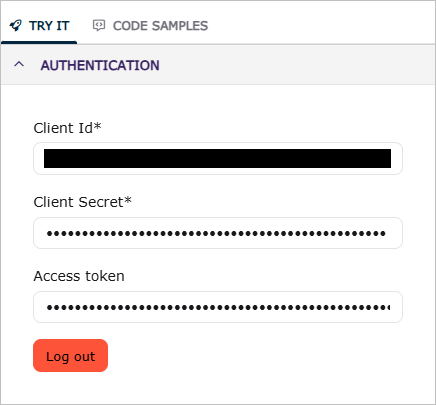
If you successfully authorize, an Access Token field appears with your OAuth2 token automatically populated, and the Authorize button is replaced with the red Log Out button.
You can now use the Try It feature to create requests and see responses returned from the endpoint.